Choose your notifications
Turn notifications on for each device you use, then choose which alerts you want. Email is separate.
Before you start
You need a browser that can show notifications.
On iPhone you need iOS 16.4 or later, and MiCal added to your Home Screen. See Install MiCal on your iPhone or Android phone.
If you do not see a Notifications card in Settings, notifications are not turned on for your account yet.
Steps
Select Settings in the sidebar. On a phone, tap More, then Settings. Scroll to the Notifications card. It sits below Daily tasks email when that card is shown.
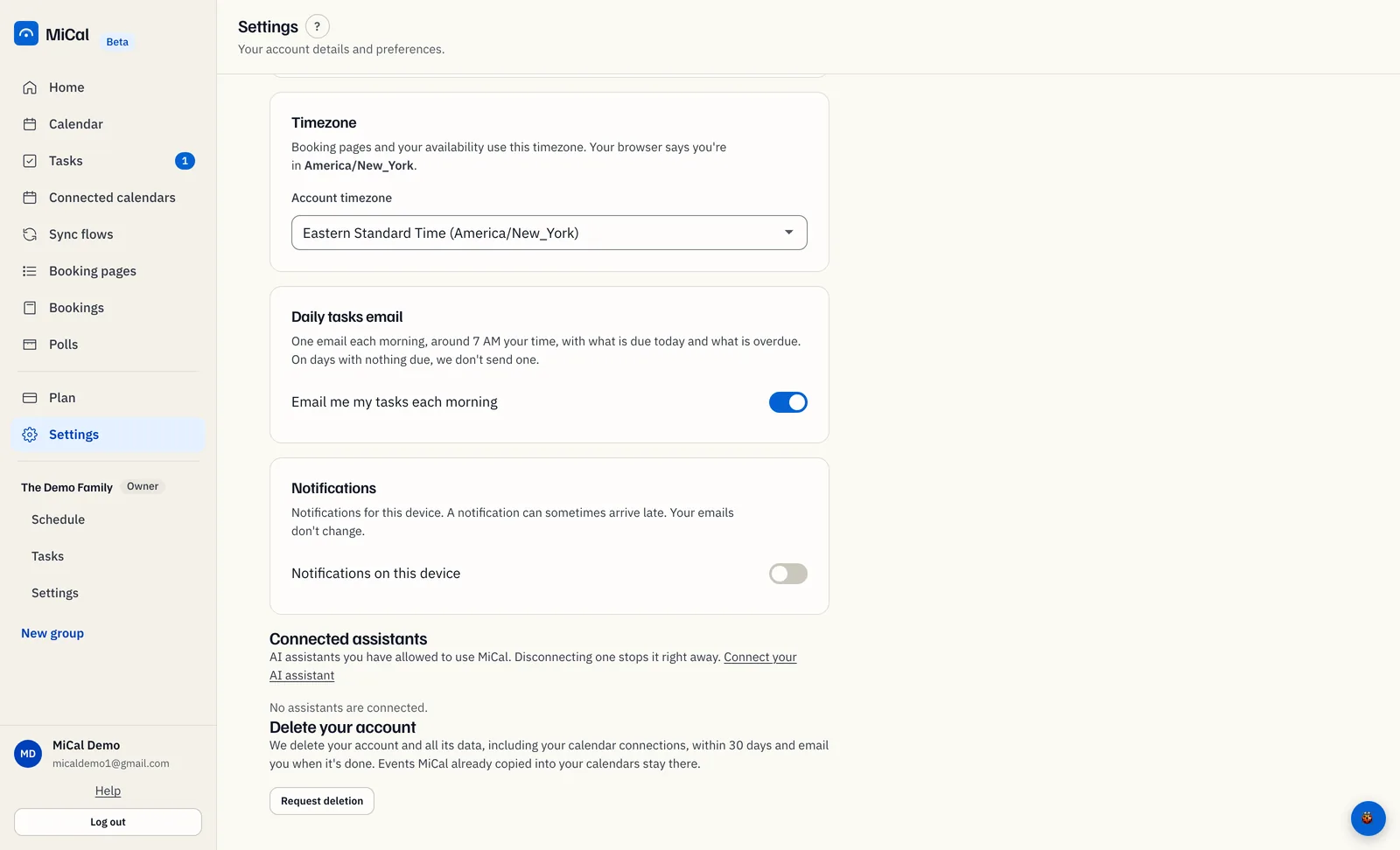
Turn on Notifications on this device. The first time, your browser asks for permission. Choose Allow.
Under Tell me when, switch each alert on or off: Someone books time with you, A sync needs attention, Tasks are due today, and Someone accepts your invite. Tasks are due today shows only if Tasks is on for you. These choices apply to all your devices, and each saves as you change it.
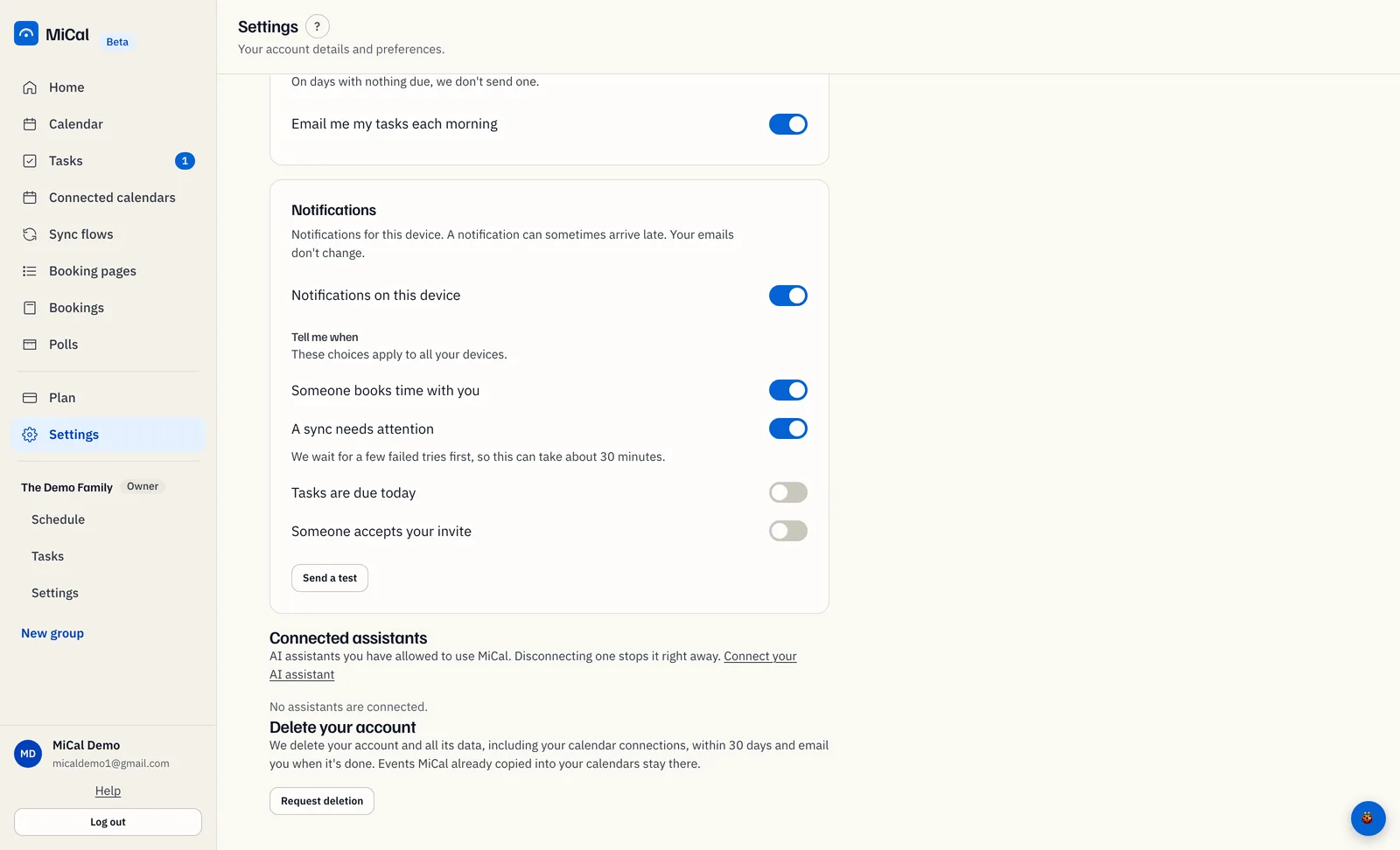
Select Send a test. If nothing arrives within a minute, check your phone's notification settings.
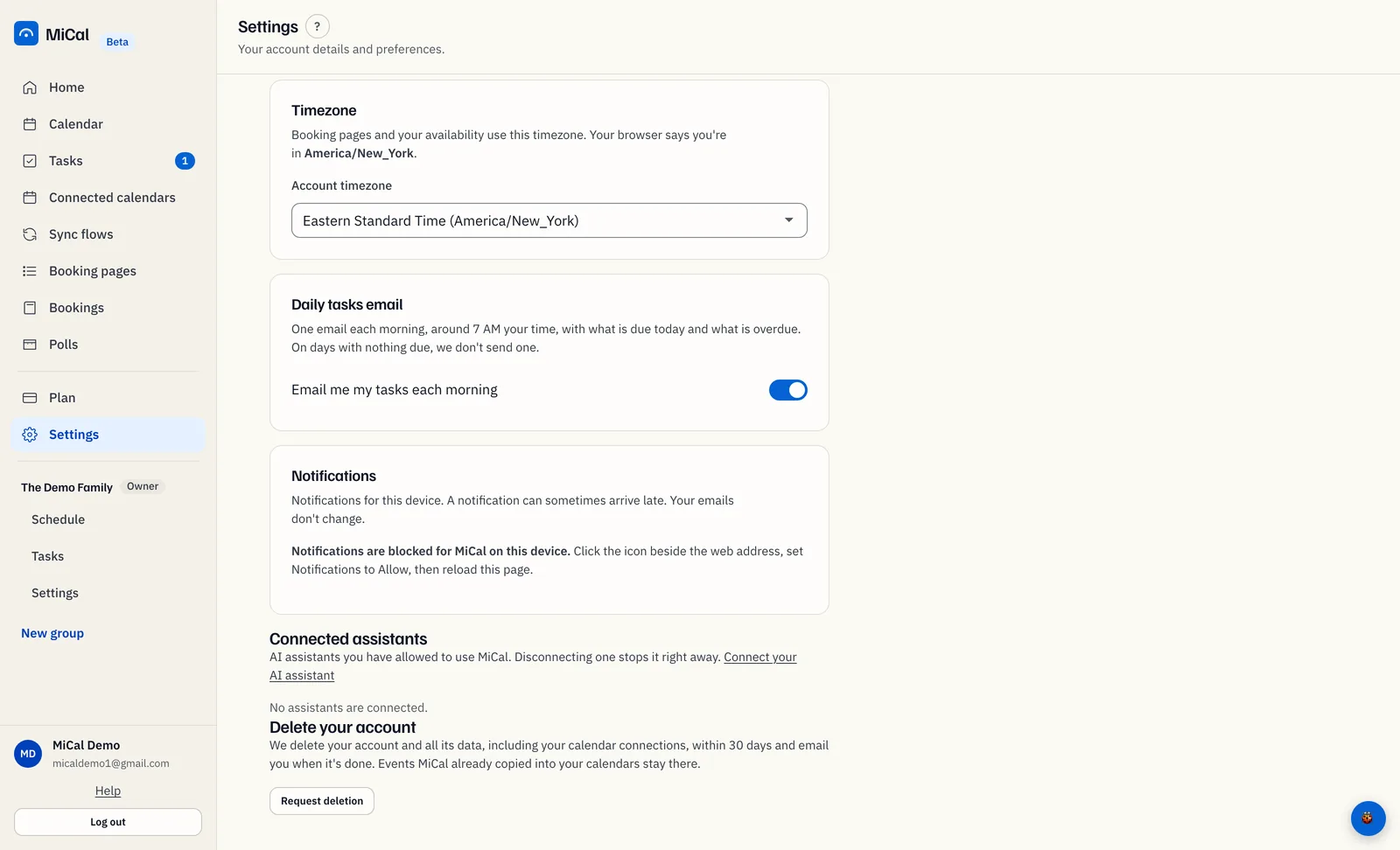
If notifications are blocked
The card says Notifications are blocked for MiCal on this device and gives the steps for that device. On a computer, select the icon beside the web address, set Notifications to Allow, and reload the page. On iPhone, open Settings, then Notifications, then MiCal, and turn on Allow Notifications.
Notes
A notification can sometimes arrive late.
A sync needs attention waits for a few failed tries first, so it can take about 30 minutes.
Your emails do not change. The daily tasks email has its own switch in Settings. See Add and organize tasks.
The Notifications on this device switch applies to one device. The Tell me when switches follow your account.
With every alert off, nothing arrives. A test still works.
Turning notifications off on a device, or logging out on it, removes that device's delivery details.
Still stuck? Email support@mical.net.