Install MiCal on your iPhone or Android phone
There is nothing to download from the App Store or Google Play. MiCal is a web app: you add it to your Home Screen from your browser in about a minute, and it gets its own icon and opens full screen like any other app. It is always the latest version, with no updates to install.
Most of MiCal's work happens on our servers. Your sync flows run about every 10 minutes, and your booking pages and polls take bookings and votes, whether or not MiCal is open on your phone.
Before you start
A MiCal account. Sign in at www.mical.net first.
iPhone or iPad: Safari. Android: Chrome.
An internet connection.
On iPhone or iPad
Open www.mical.net in Safari and sign in with Google or Microsoft.
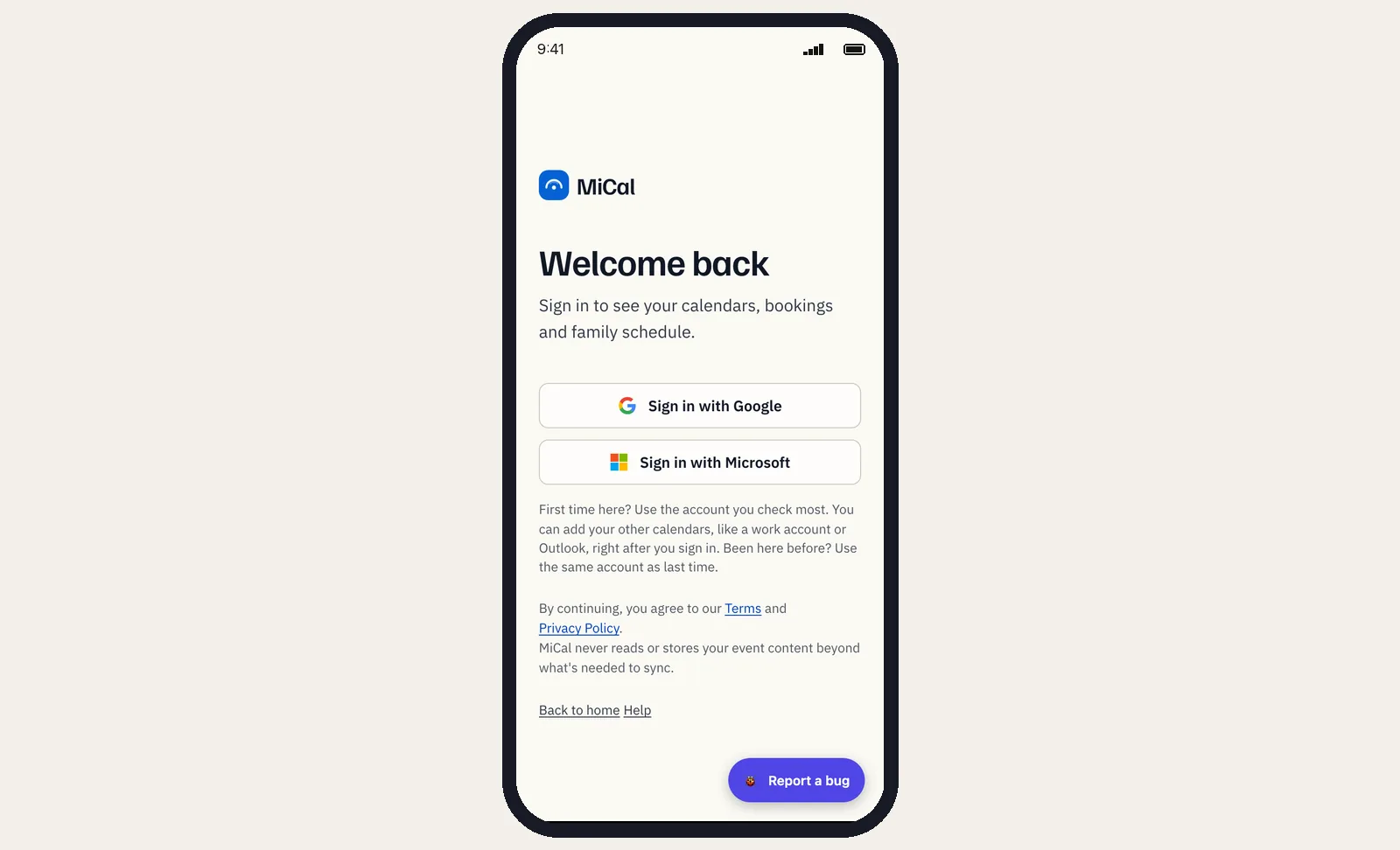
Tap Share, the square with an arrow pointing up. If you don't see it, tap the three dots first.
Scroll down and tap Add to Home Screen.
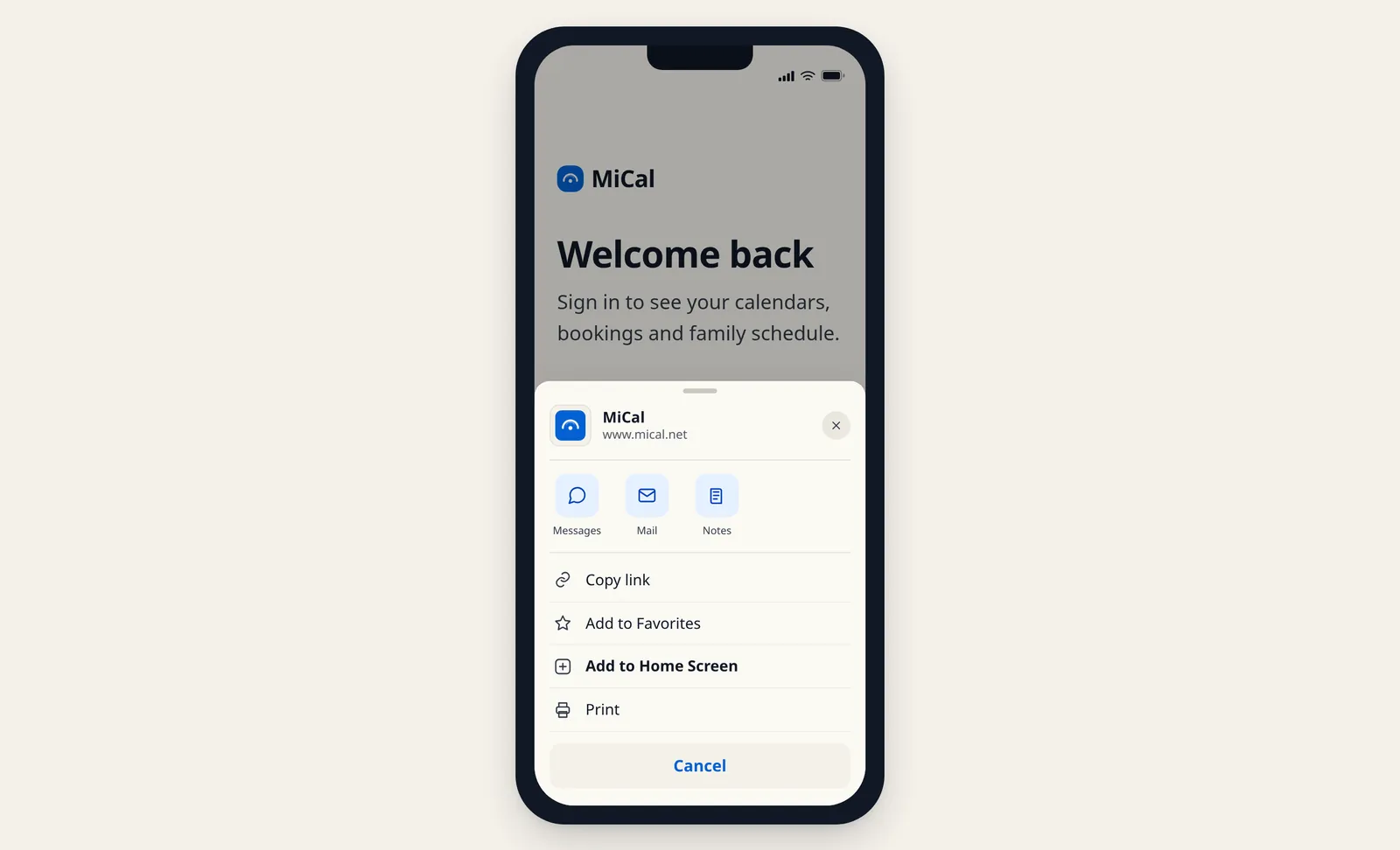
Tap Add.
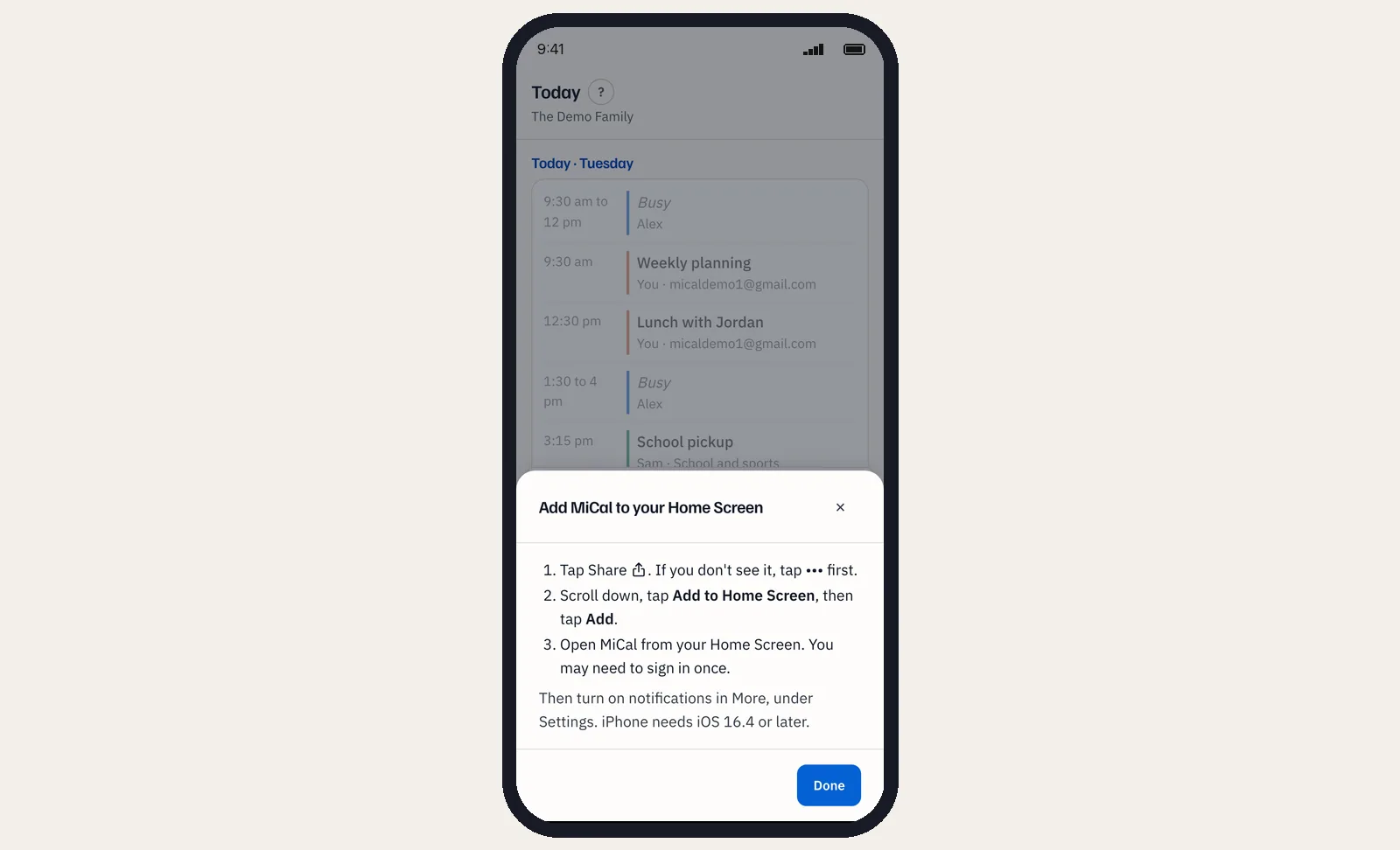
Open MiCal from your Home Screen. You may need to sign in once.
To see these steps inside MiCal, tap More, then Install MiCal. Tap Done when you finish.
On Android
Open www.mical.net in Chrome and sign in.
After your first sync, booking link, booking page, or task, a card appears above the tab bar. Tap Install, then confirm in Chrome's prompt.
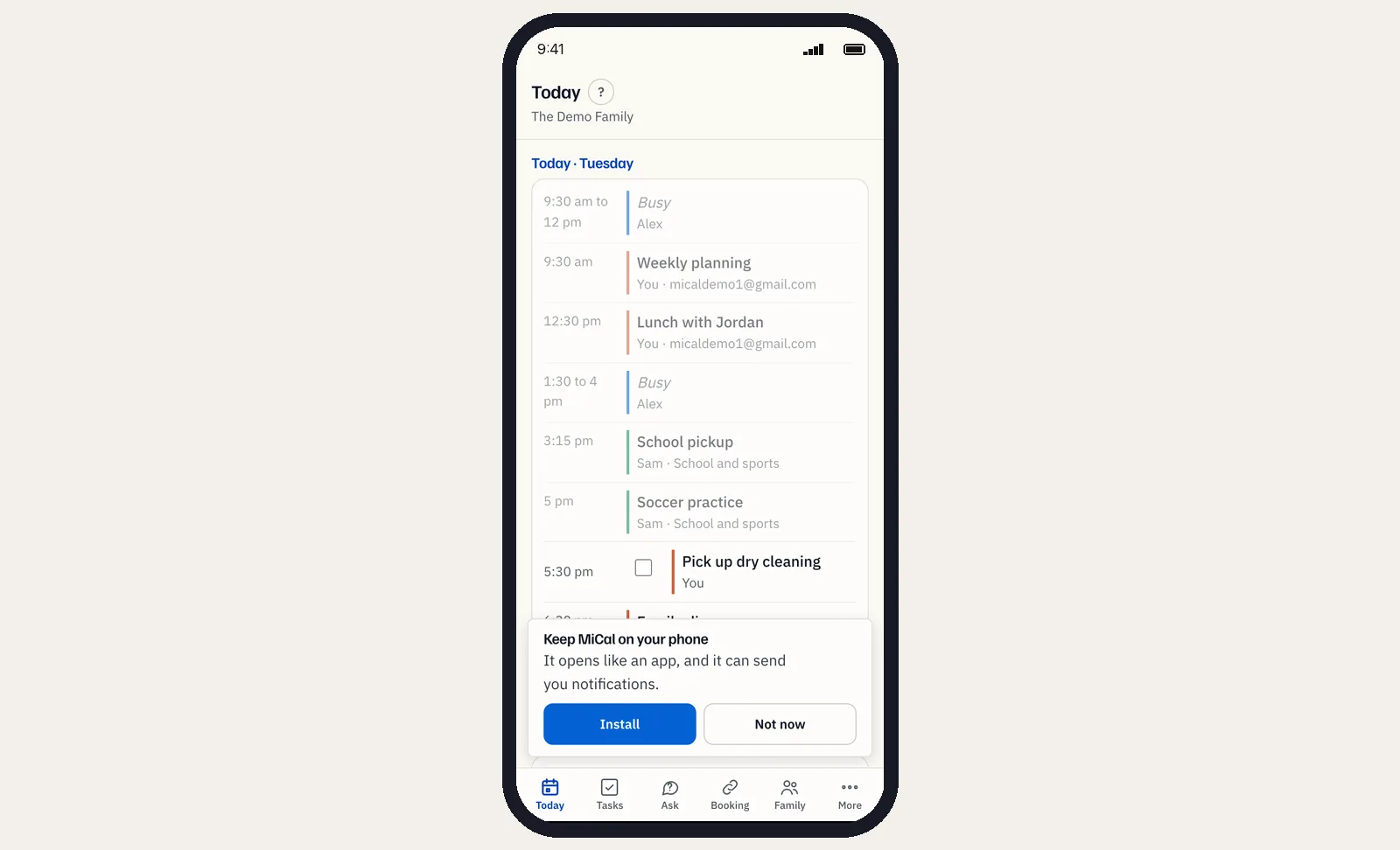
To install later, open Settings and tap Install on the Install MiCal on your phone card. Or tap More, then Install MiCal. Chrome's menu also has Install app. Older versions call it Add to Home screen.
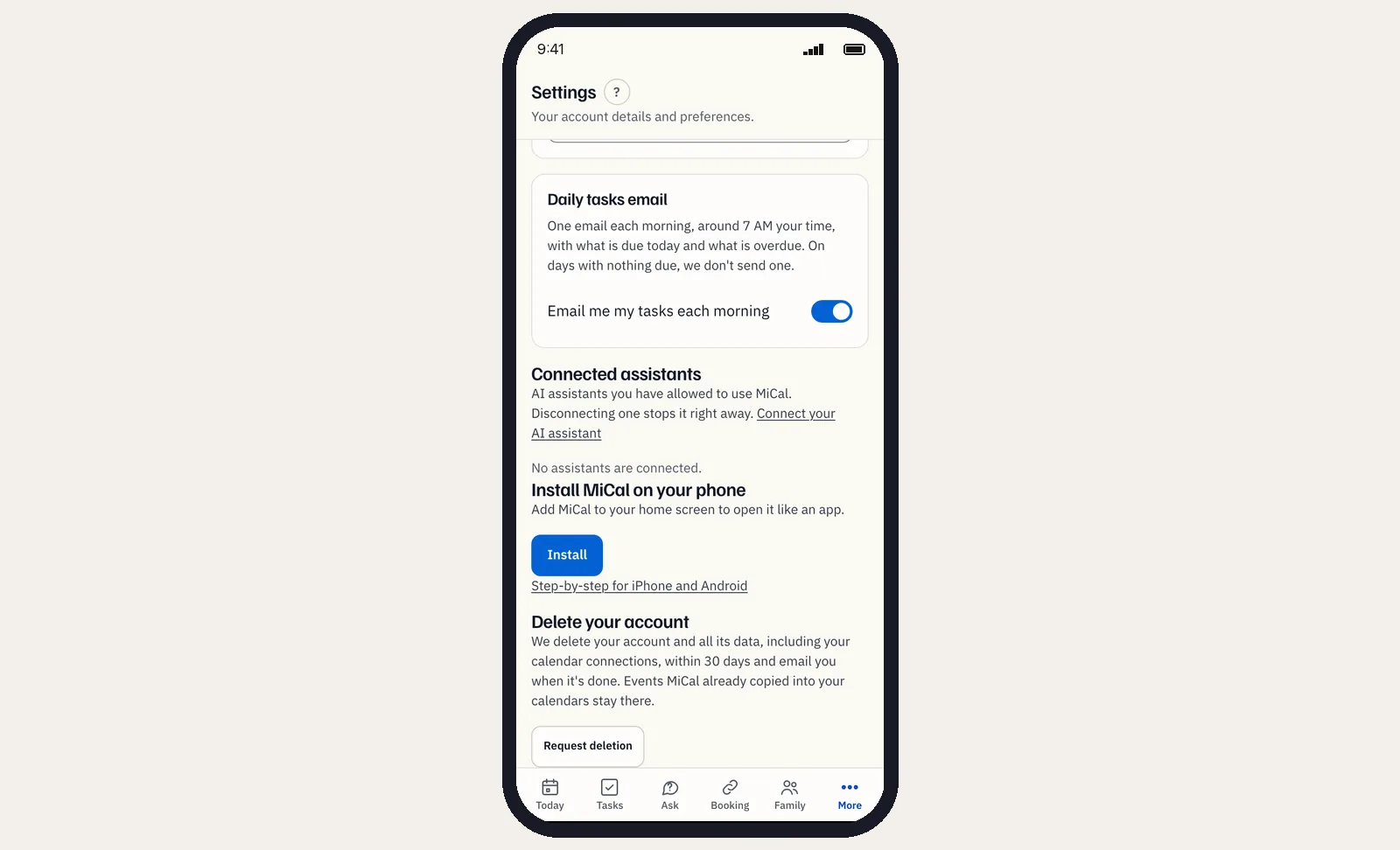
Open MiCal from your Home Screen.
If the install option is missing
Update Chrome. The Install button needs a current version.
On iPhone, use Safari. On iOS 16.4 and later, Chrome's Share menu also has Add to Home Screen. On iOS 16.3 and earlier, only Safari works.
An in-app browser, such as the one inside Instagram or Gmail, can't add MiCal. Open the link in Safari or Chrome instead.
Once MiCal is installed, the install card and the Install MiCal row go away.
If MiCal shows you as signed out
Close MiCal and open it again. If it still says you are signed out, sign in once in Safari, then open MiCal from your Home Screen.
Notes
Not now on the card hides it for 30 days. You can still install from More.
MiCal opens the latest version each time you open it.
MiCal needs an internet connection. See Use MiCal offline.
Still stuck? Email support@mical.net.