Subscribe to a group's calendar
Put a group's shared events in your own calendar app. Subscribe once and they update as plans change.
Before you start
You are a member of the group.
You are signed in to MiCal.
Subscribe
In the sidebar, select Schedule under the group's name.
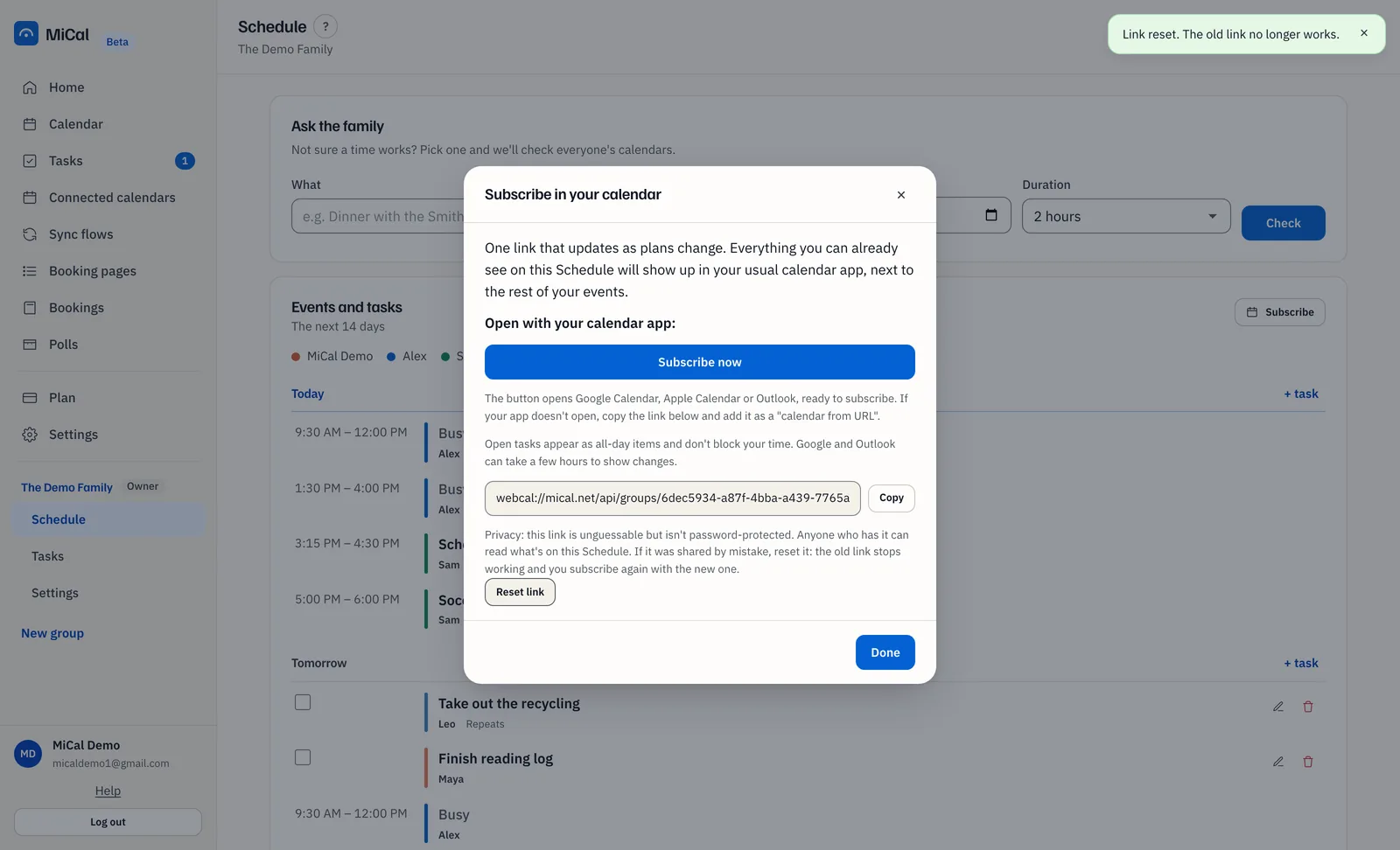
On the Shared calendar events card, select Subscribe. The box is titled Subscribe in your calendar.
Select Subscribe now. It opens Google Calendar, Apple Calendar or Outlook, ready to subscribe.
If nothing opens, select Copy and add the link in your calendar app as a calendar from URL.
Select Done.
Reset the link
Reset the link if it was shared or forwarded by mistake. The old link stops working at once. The calendar itself does not change.
Open the Subscribe in your calendar box as above.
Select Reset link. The link field shows the new link.
Select Copy, and add the new link to your calendar app. Anyone who used the old link needs the new one from you.
Notes
The link is unguessable but has no password. Anyone who has it can read what is on your Schedule.
Resetting changes your link only. Other members' links stay as they are.
Google and Outlook can take a few hours to show changes.
With Tasks on, open tasks appear as all-day items. They do not block your time.
Still stuck? Email support@mical.net.