Remove the copies a sync flow added
Remove copies deletes every event a sync flow added, on all of its calendars. MiCal counts them first, then turns the flow off so they do not come back.
Before you start
The flow still exists on Sync flows. For copies left behind by a flow you deleted, use Tidy up leftover copies.
The flow's calendars are connected and reachable. If MiCal cannot reach one, nothing is removed.
Steps
Find the flow that made the copies. On Home, in Coming up, a copy whose original is gone is dimmed and its title ends in "(copy)". It was made by the flow that copies into that calendar.
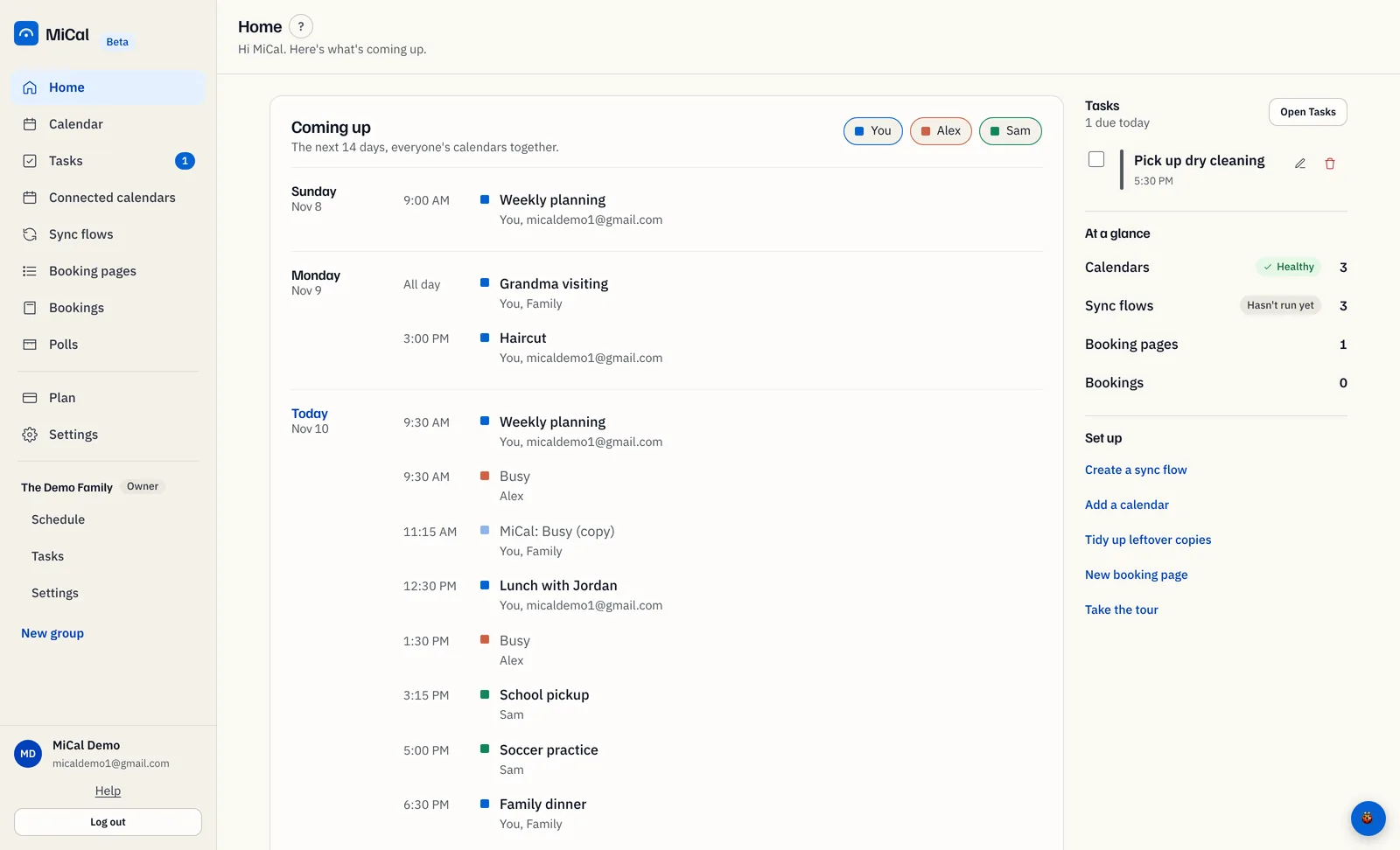
Select Sync flows in the sidebar. On that flow, select Remove copies.

MiCal shows how many copies it will remove and from which calendar, for example "Remove 2 copies from Work?" Select Turn off and remove.
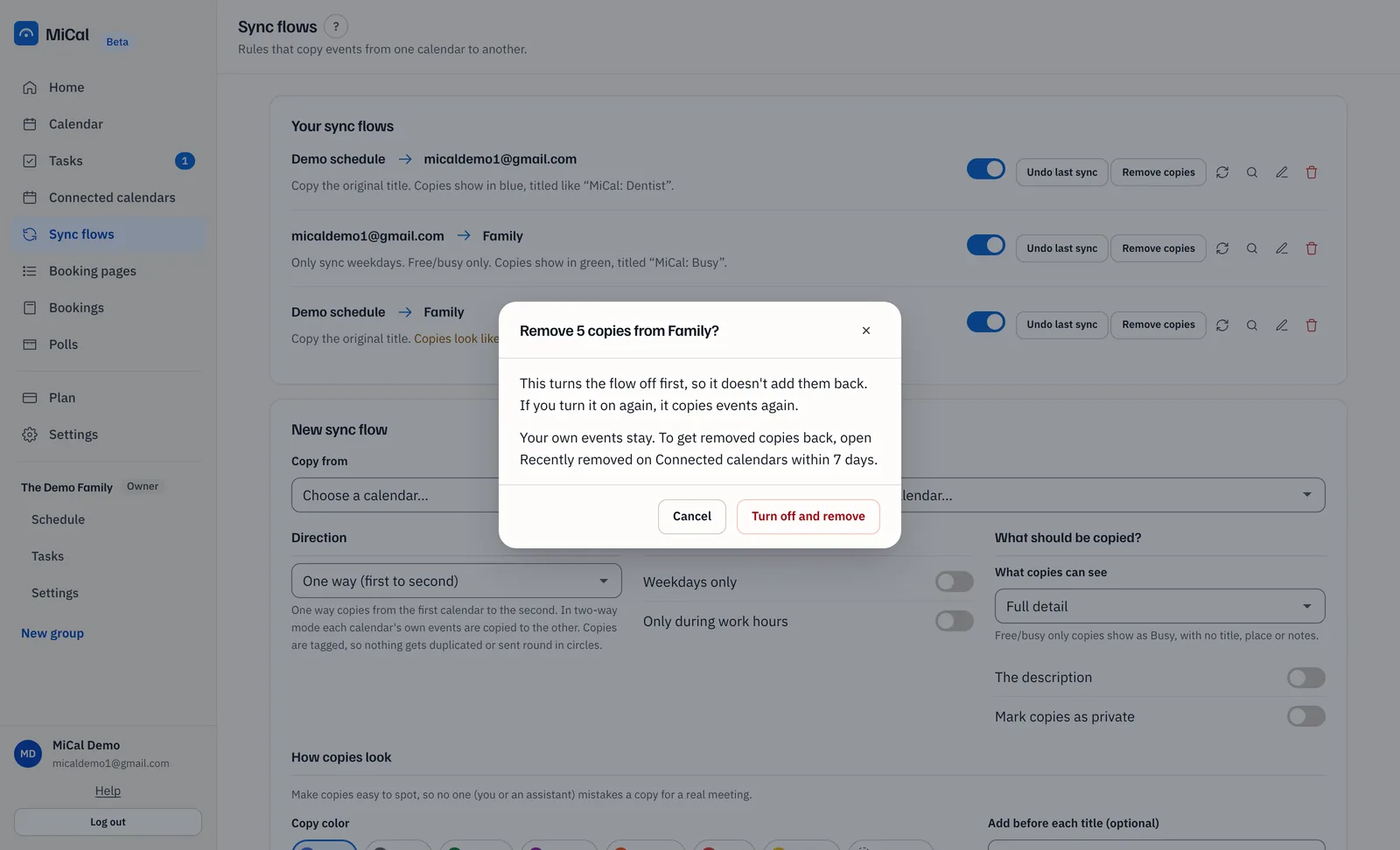
Wait for the "Removing copies" box to close. A large flow can take a minute. MiCal reports how many copies it removed and that the flow is off.
Get copies back
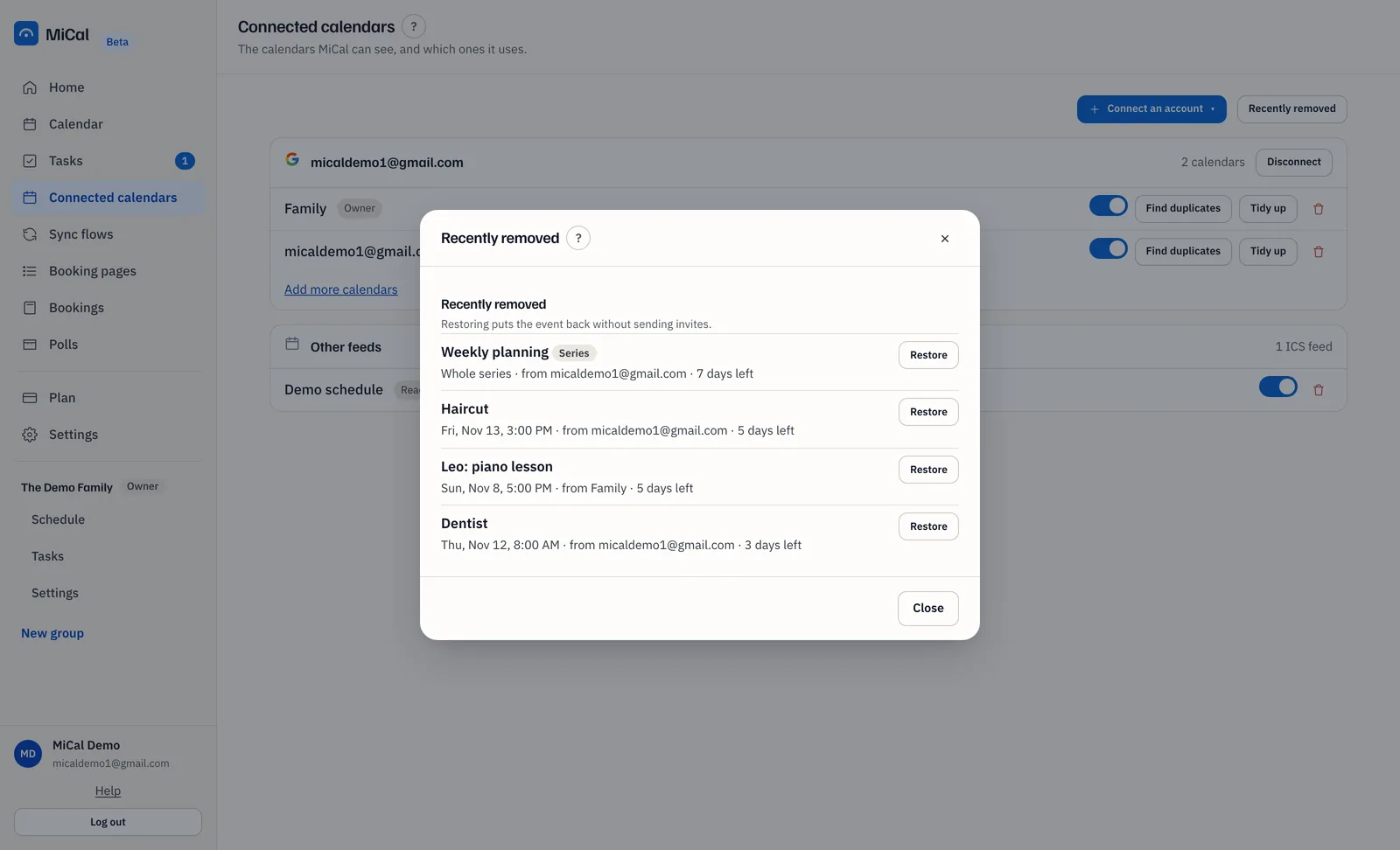
Removed copies stay restorable for 7 days.
Select Connected calendars in the sidebar, then Recently removed.
Select Restore beside the event. It comes back without sending invites.
Notes
Only that flow's copies go. Your own events, other flows' copies, and copies with guests added stay.
Remove copies looks from a year back to 60 days ahead.
The flow stays off. Turn it on again and it copies events again.
If a calendar cannot be reached, reconnect it on Connected calendars, then select Remove copies again. See Reconnect an account.
If some copies could not be removed, the flow stays off. Select Remove copies again to finish.
If the flow has no copies, MiCal says "This flow has no copies to remove."
You can also delete a copy in your own calendar app.
To remove copies and delete the flow in one step, choose Delete flow and copies when you delete it.
Still stuck? Email support@mical.net.