Control how you see each member
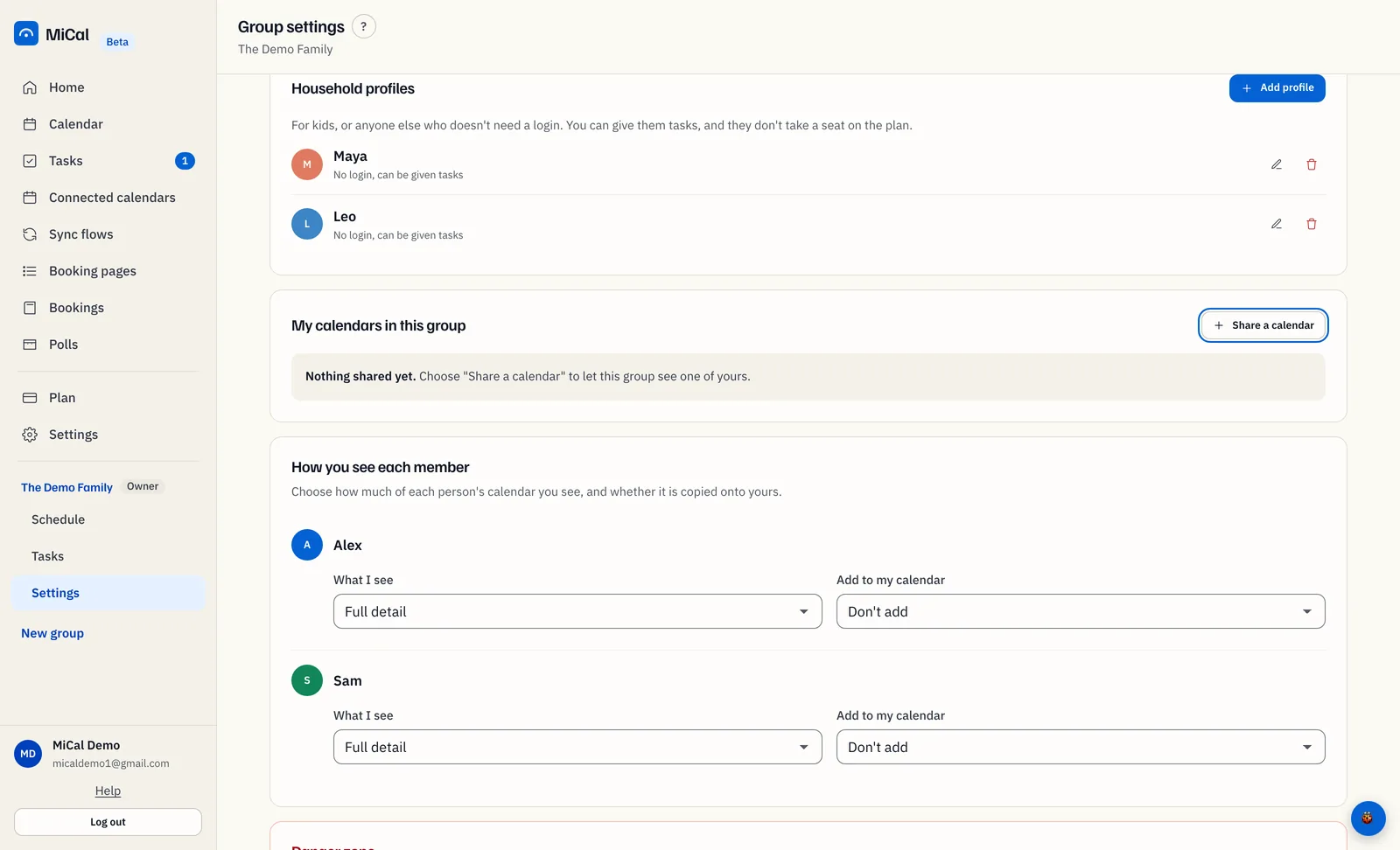
Choose how much of each member's calendar you see, and whether their events are copied onto your own calendar.
Before you start
The group has at least one other active member. The card does not show otherwise.
A calendar you own, if you want a member's events copied onto it.
Steps
In the sidebar, select Settings under the group's name.
Scroll to How you see each member. Each member has a row.
Open What I see and pick Full detail, Free/busy or Hidden. It saves as soon as you pick it.
To copy their events onto your calendar, open Add to my calendar and pick Busy only or Full detail. Don't add is the default.
Two more fields appear. Under Where they land, pick the calendar that receives the events. In Title prefix, type a label for their event titles, such as [Jordan].
Notes
What I see can only narrow what a member shares. If they share free/busy only, Full detail still shows free/busy.
Copies do nothing until you pick a calendar in Where they land. MiCal reminds you with "Pick a calendar for these events to land on."
Copies are added during the sync, which runs about every 10 minutes.
A private or confidential event always arrives as a plain busy block.
A Title prefix makes one member's events easy to pick out of a busy calendar.
Still stuck? Email support@mical.net.