Import more calendars from a connected account
Add calendars from an account you already connected, without signing in again.
Before you start
A Google, Microsoft or iCloud account connected to MiCal.
The account doesn't show Reconnect. Reconnect it first if it does.
Steps
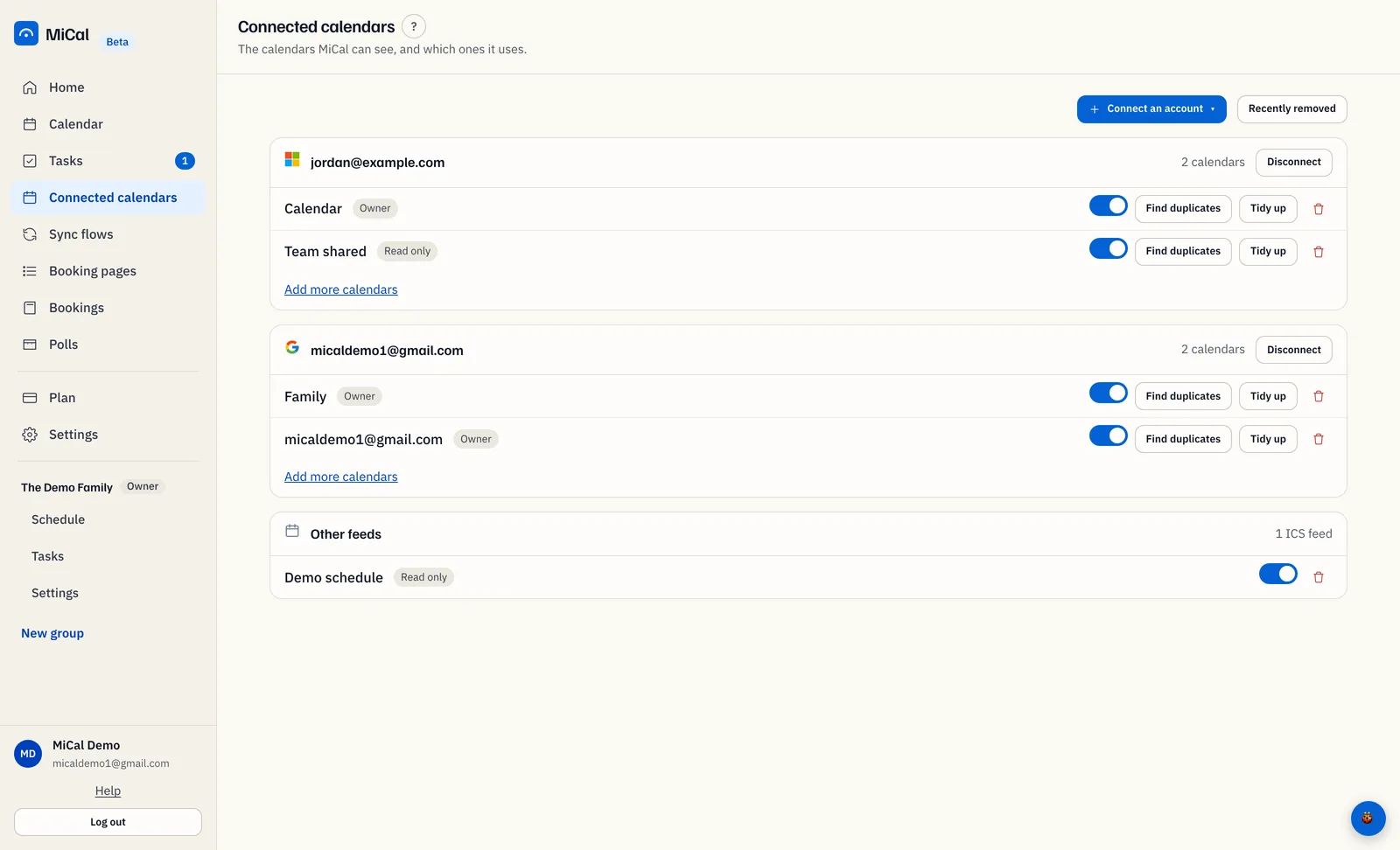
Select Connected calendars in the sidebar.
On the account's card, select Add more calendars. If the card says No calendars imported from this account yet, select Choose calendars instead.
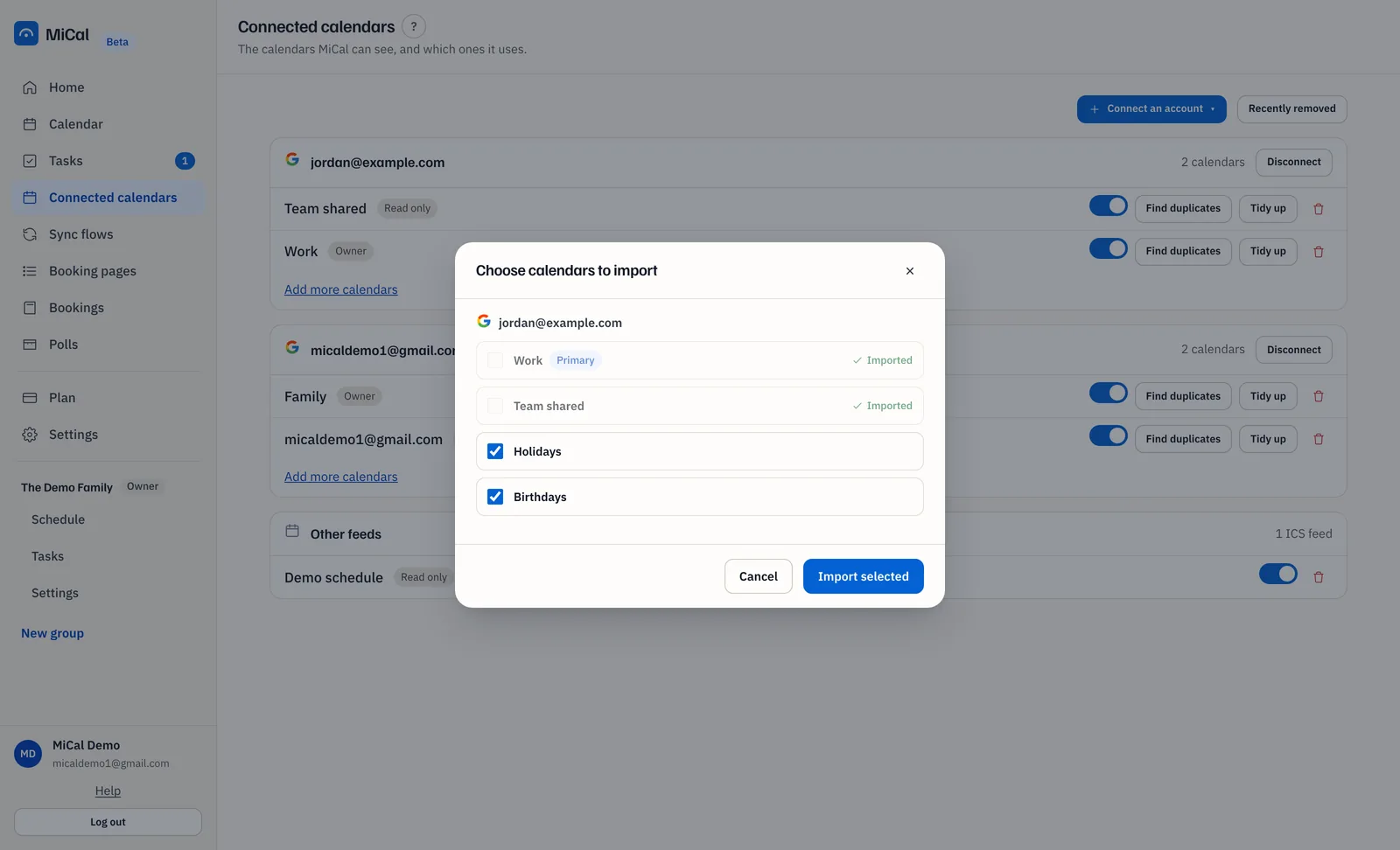
In Choose calendars to import, calendars you haven't added are ticked. Untick any you don't want. Calendars already in MiCal show Imported and can't be selected. Primary marks the account's main calendar.
Select Import selected. MiCal shows "Imported 2 calendars." and the calendars appear under the account.
Notes
To see every connected account in one list, select Connect an account, then Choose calendars to import.
Imported calendars start switched on. Use the toggle on a row to turn one off.
Importing doesn't copy events anywhere. To copy events between calendars, create a sync flow.
The Free plan has room for 1 calendar. If you go over your plan's limit, MiCal tells you and offers an upgrade.
Still stuck? Email support@mical.net.