Add a read-only calendar link (ICS)
Follow a calendar MiCal can't sign in to by pasting its link. MiCal reads it and never writes to it.
Before you start
The calendar's ICS link. It starts with
https://orwebcal://.A name for it, such as School calendar.
Steps
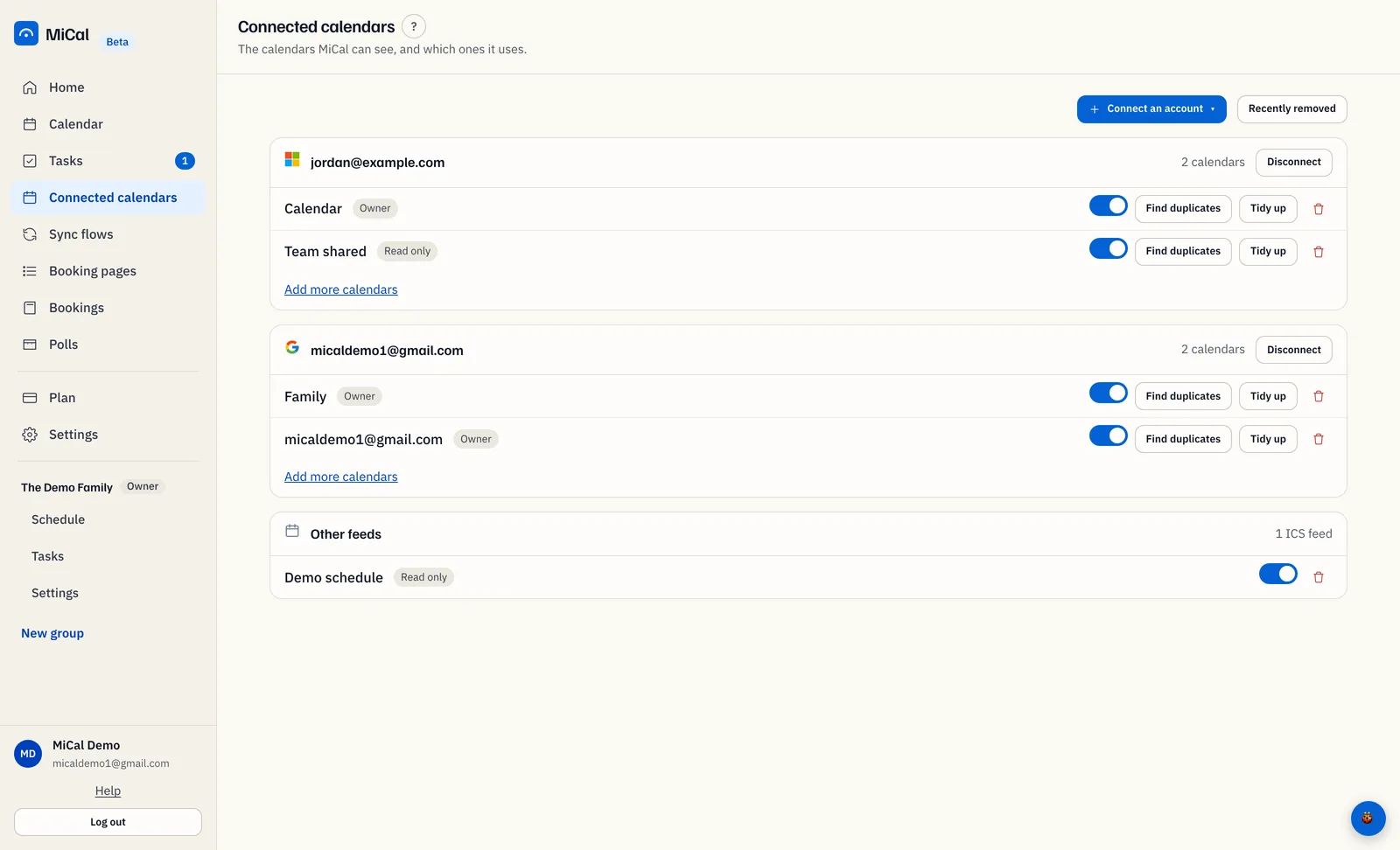
Select Connected calendars in the sidebar.
Select Connect an account, then choose Read-only calendar link. The form Add a read-only calendar link opens.
In Name, type a name for the calendar. In Calendar link, paste the link.
Select Add link. MiCal shows "Feed added." and lists the calendar under Other feeds.
Notes
The link must point to a public address. MiCal can't read a link that needs a sign-in.
A read-only calendar can be the source of a sync flow, never the target. You can't edit its events in MiCal.
It counts toward your plan's calendar limit. The Free plan has room for 1 calendar.
Turn it off with the toggle on its row. Remove it with the trash icon.
To let MiCal add events to an iCloud calendar, use iCloud in the same menu instead, when it is available to you.
Still stuck? Email support@mical.net.