Find a time everyone is free
Pick a group on Calendar to see everyone's week in one grid. Green bands mark the times everyone counted is free.
Before you start
Calendar is in your sidebar. It is only there if the Calendar feature is on for your account.
The group has at least two people sharing a calendar.
See the group's week
Open Calendar. In the Group menu, choose your group. Choose Just me to go back to your own events.
Read the week. Each person's events use their color, with their name on the block.
Striped blocks say Busy. They come from someone who shares free/busy only.
Select a person's chip above the grid to hide them. Select it again to bring them back.
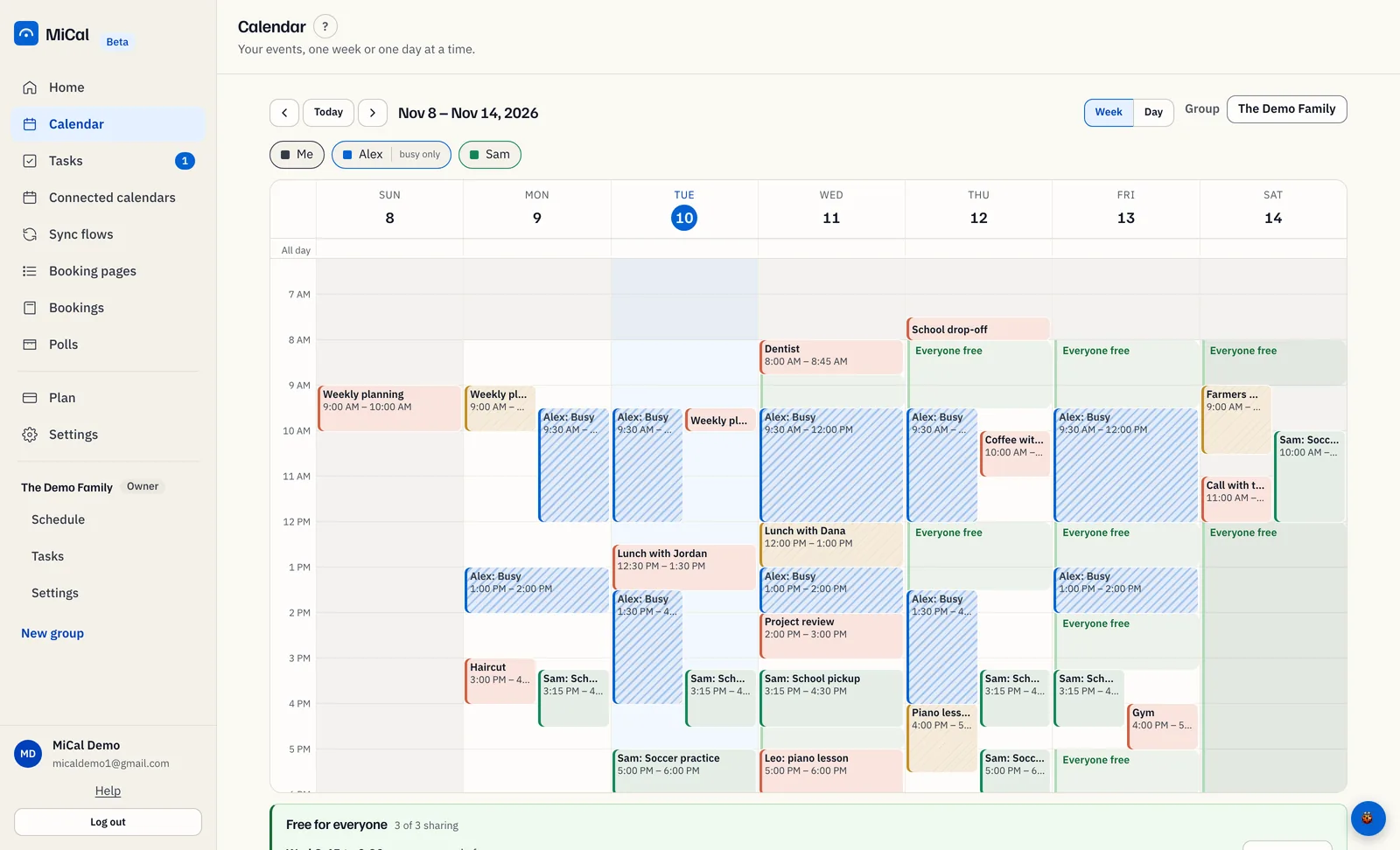
Chips can carry a tag. not sharing means no calendar is shared. busy only means free/busy only. can't load means MiCal could not read that calendar.
Find the free times
Green bands are labeled Everyone free. They run between 8 am and 6 pm and last at least 30 minutes.
All-day events and events marked free do not count as busy.
If someone's calendar did not load, no green shows for the time MiCal cannot see.
Under the grid, Free for everyone lists the next openings, earliest first. It shows how many people are counted, and names anyone who is not sharing or is switched off.
Ask the group about a time
Select a green band, or select Ask the group next to a listed time. A box shows the day, the hours and who is free. It also names anyone not counted.
Select Ask the group about this time.
The group's Schedule opens with When and Duration filled in. Type the occasion in What, then select Check.
Nothing is checked or sent until you select Check. To book the time once it checks out, see Check the group is free and book a time.
Notes
MiCal remembers your Group choice and hidden people on this device.
Only your own events open when you select them.
On a phone, Today shows the same free times as Everyone free rows. Tap one to open Ask.
Still stuck? Email support@mical.net.