Delete your MiCal account
Ask MiCal to delete your account from Settings. MiCal deletes the account and all its data within 30 days.
Before you start
Sign in to the account you want to delete.
Have access to the email address on the account. MiCal sends your confirmation there.
Steps
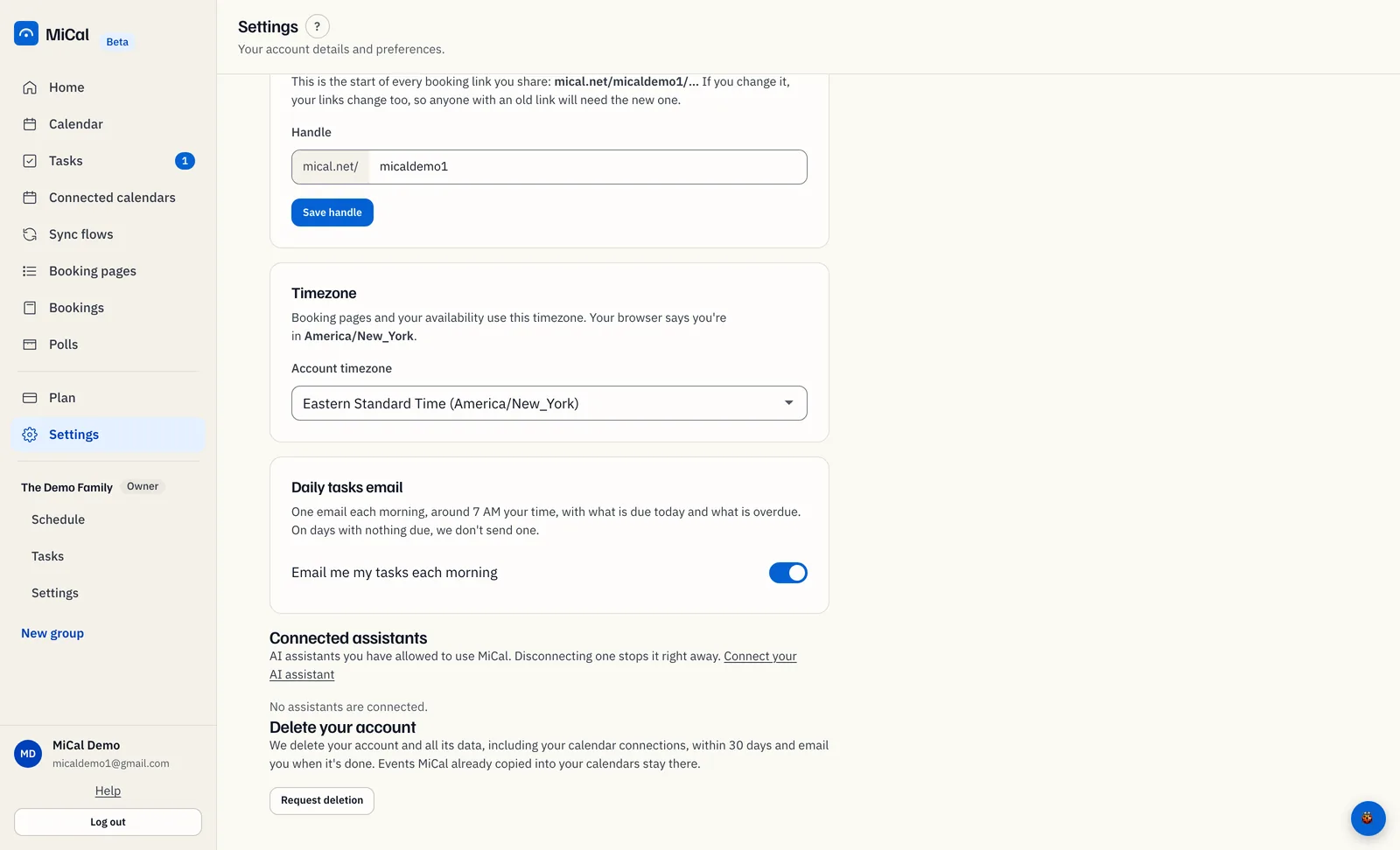
Select Settings in the sidebar. On a phone, tap More, then Settings.
Scroll to the Delete your account card at the bottom and select Request deletion.
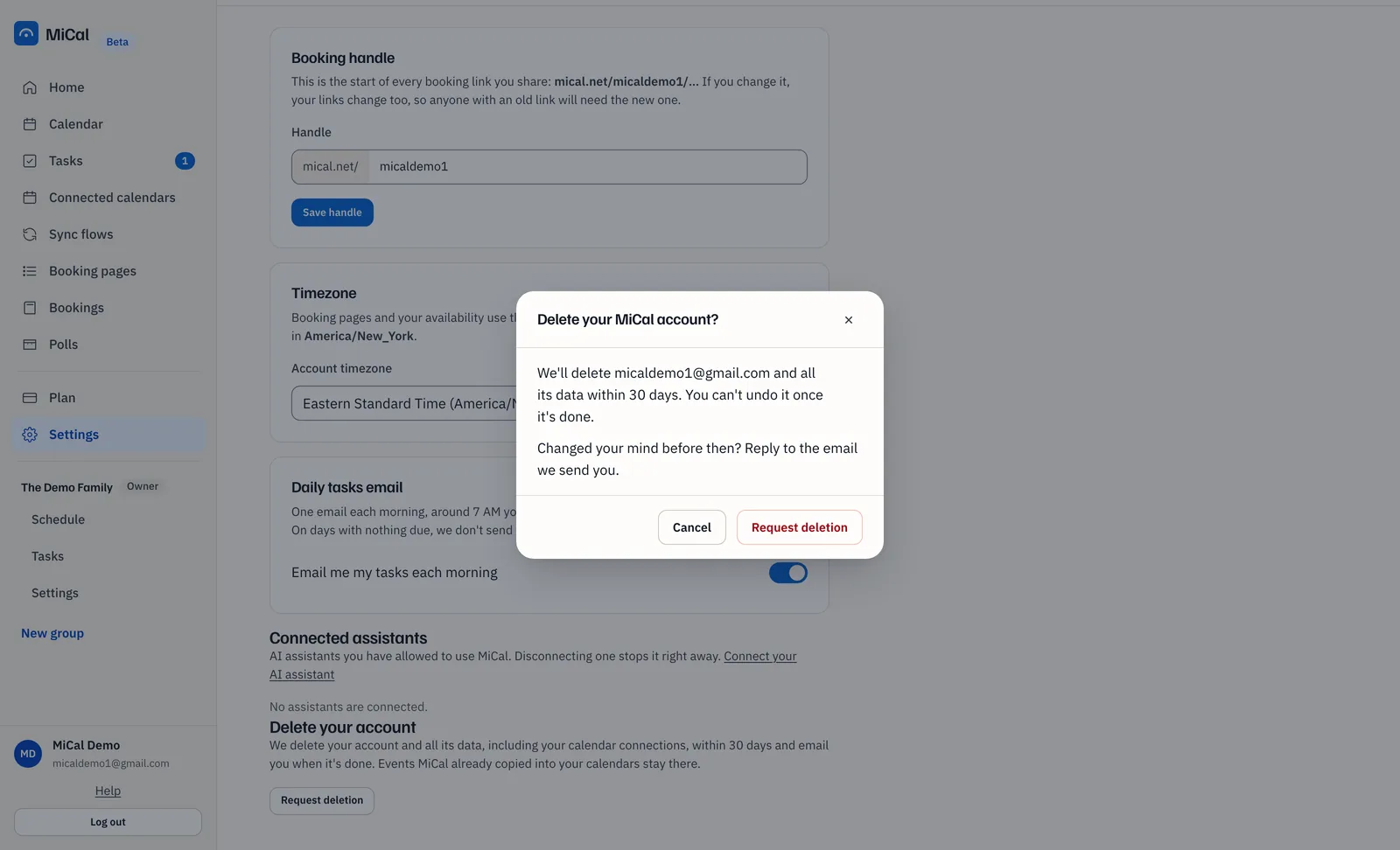
In the Delete your MiCal account? dialog, read the message and select Request deletion. Cancel is selected by default, so a stray key press does nothing.
What happens next
The card says Request sent and MiCal emails you a copy of the request. MiCal then deletes your account and all its data, including your calendar connections, within 30 days. MiCal emails you when it is done.
Events MiCal already copied into your calendars stay there.
To cancel, reply to the confirmation email before the deletion happens.
Notes
You can send at most 3 requests a day.
If MiCal cannot send the request, an error tells you to email privacy@mical.net instead.
Still stuck? Email support@mical.net.