Turn the daily tasks email on or off
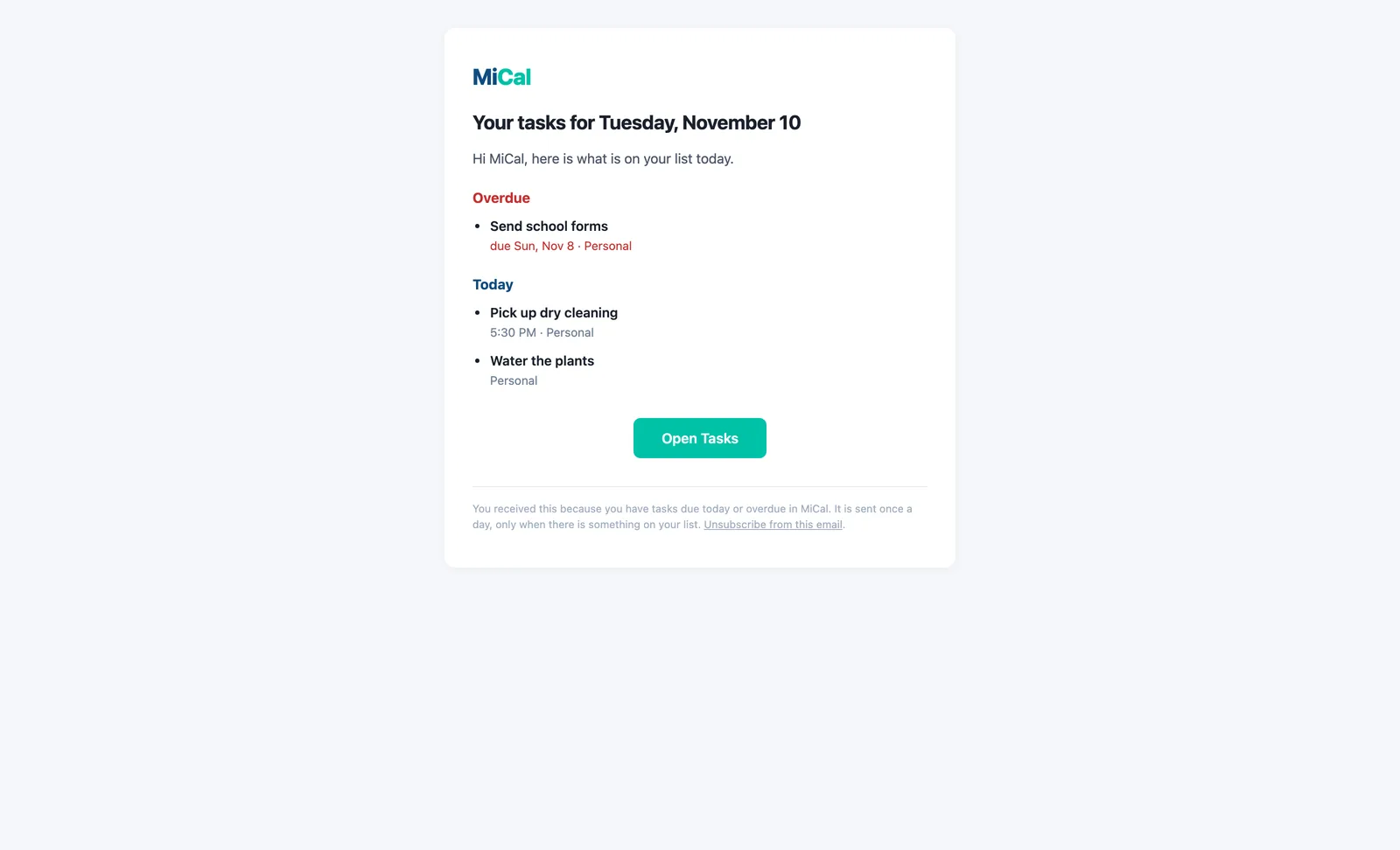
MiCal sends one email each morning, around 7 AM in your account timezone, with the tasks due today and the ones that are overdue.
Before you start
Tasks must be on for your account. The Daily tasks email card shows only then.
On a phone, open More, then Settings.
Turn it off or on in Settings
Open Settings.
In the Daily tasks email card, switch off Email me my tasks each morning. It saves right away and MiCal says "The daily tasks email is off."
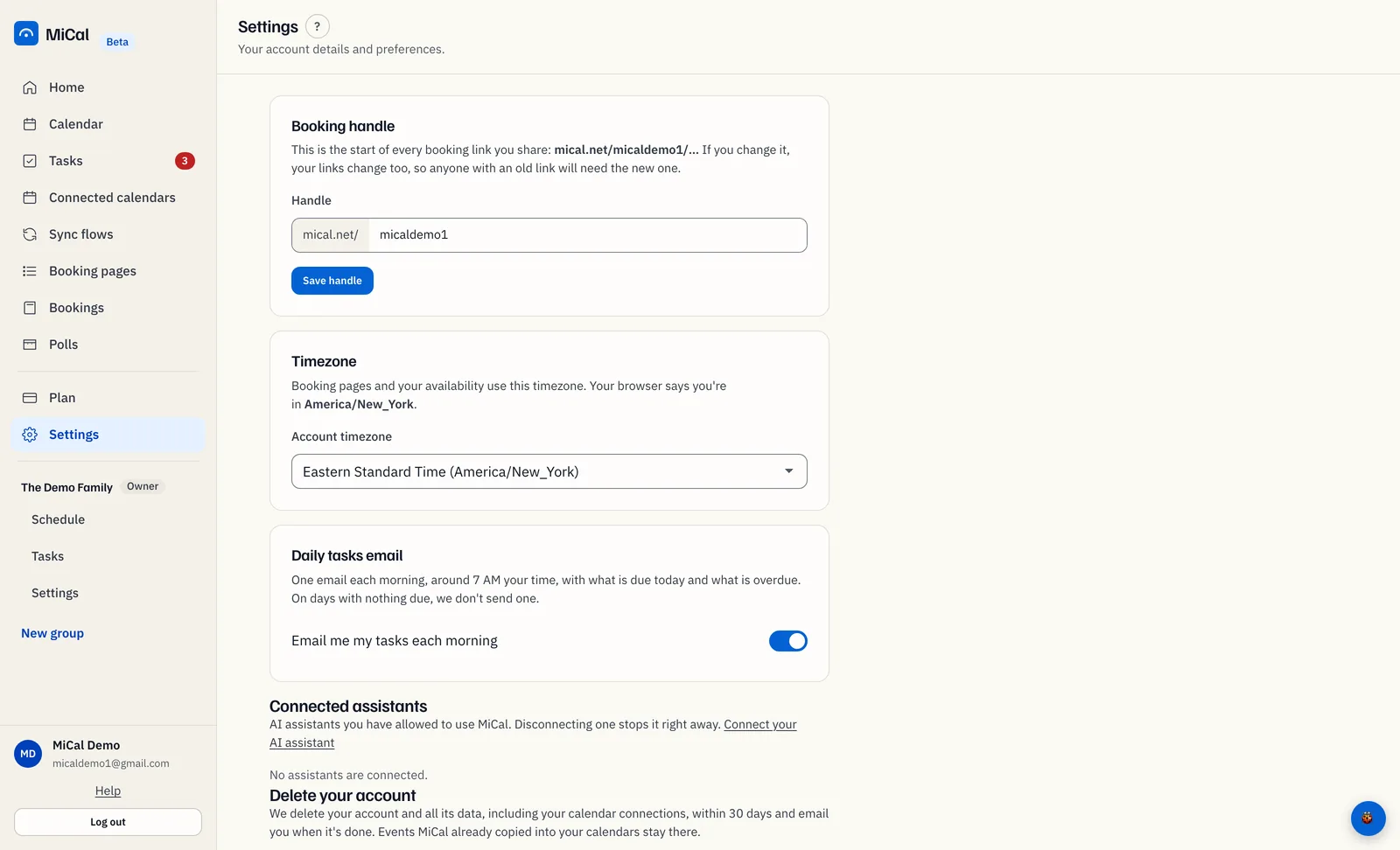
To turn it back on, switch the same setting on. The email resumes the next morning.
Turn it off from the email
Open any daily tasks email and scroll to the bottom.
Select Unsubscribe from this email.
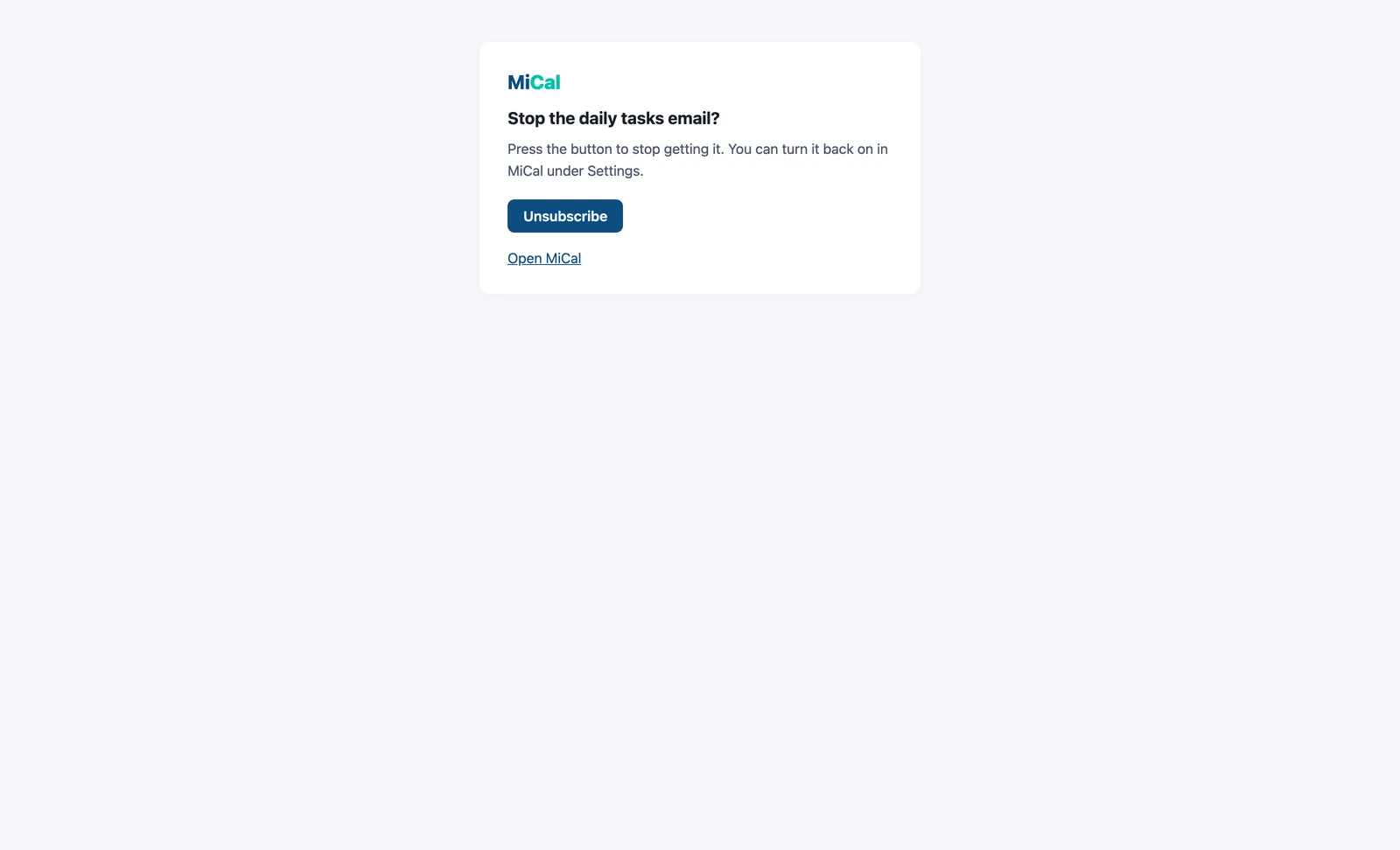
On the page that asks Stop the daily tasks email?, select Unsubscribe. The page then says "You're unsubscribed."
Notes
Your mail app's own unsubscribe button turns the email off right away, with no confirmation page.
The unsubscribe link only turns the email off. Turn it back on in Settings.
No email is sent on days when nothing is due.
Turning the email off does not change phone notifications. Those are in the Notifications card in Settings.
Still stuck? Email support@mical.net.