Connect iCloud Calendar
Connect iCloud Calendar to MiCal with an app-specific password. Changes then sync both ways between MiCal and Apple Calendar.
Before you start
An Apple Account with two-factor authentication turned on. Apple only offers app-specific passwords when it is on.
Your Apple Account email or phone number.
If iCloud is missing from the Connect an account menu, it is not turned on for your account yet. Read-only calendar link in the same menu works in the meantime.
Steps
Make an app-specific password. At account.apple.com, open Sign-In and Security, then App-Specific Passwords. Make one called MiCal and copy it. It looks like abcd-efgh-ijkl-mnop. MiCal never asks for your regular Apple password, and refuses it if you paste it.
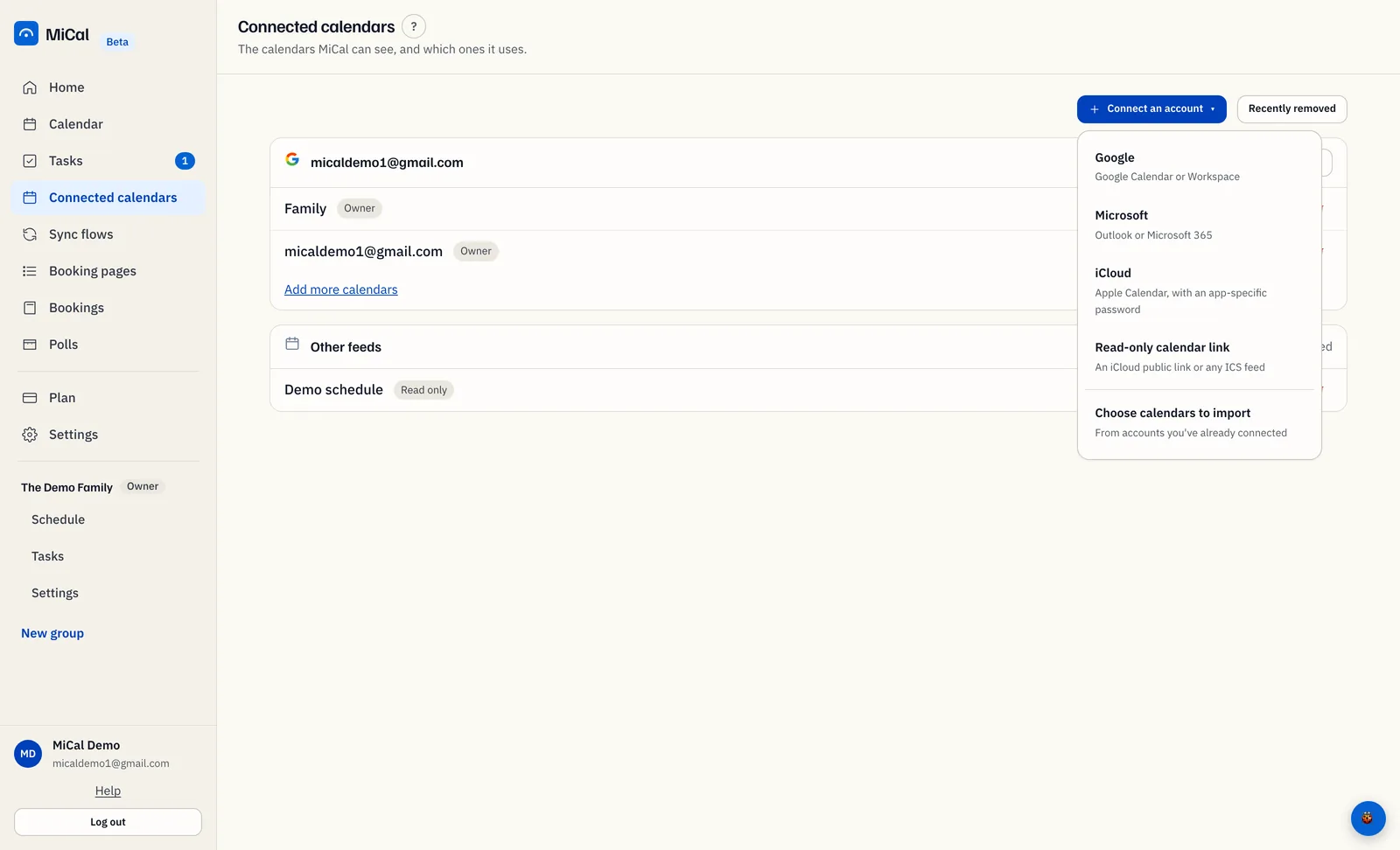
In MiCal, select Connected calendars in the sidebar, select Connect an account, then choose iCloud.
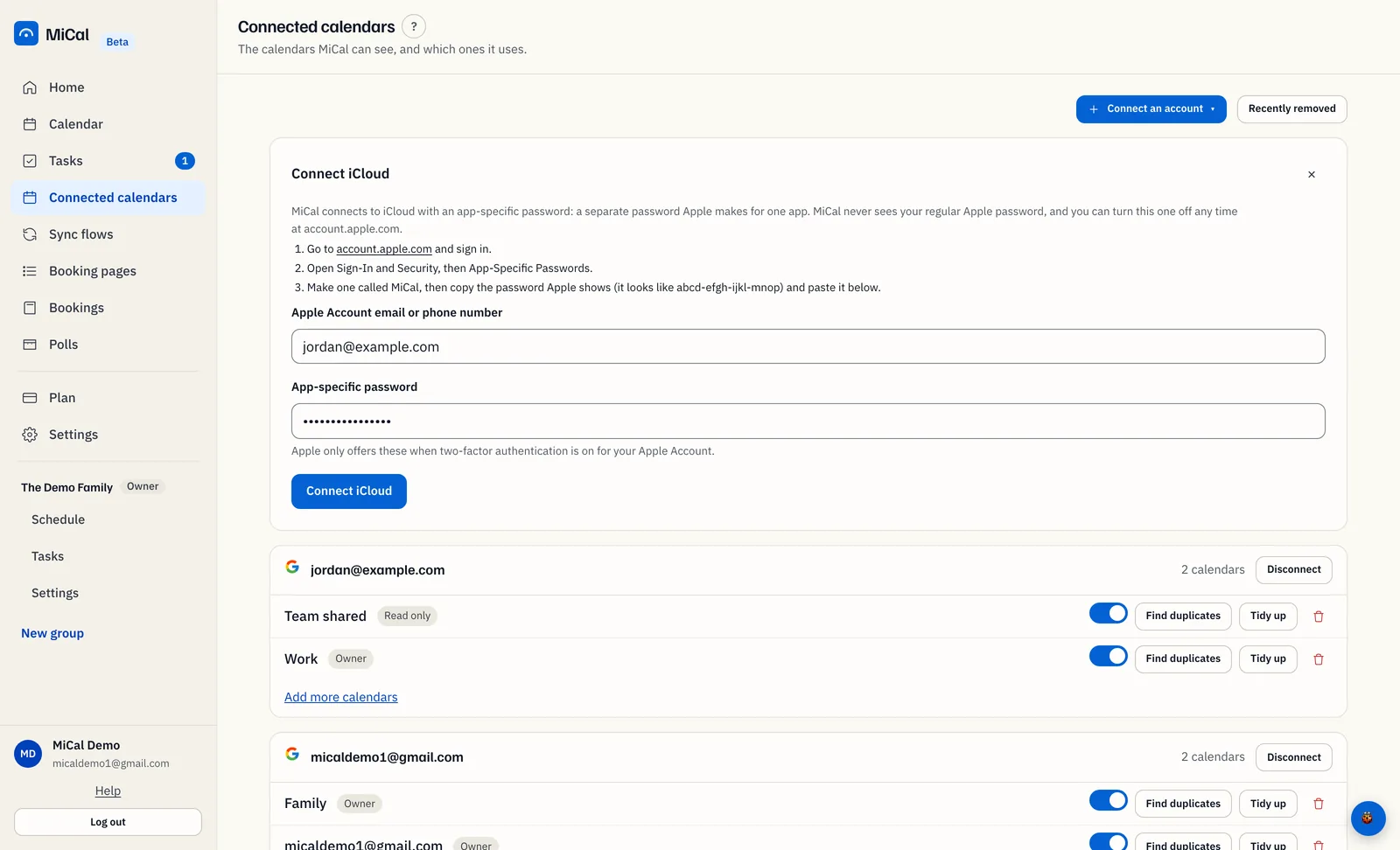
In the Connect iCloud card, enter your Apple Account email or phone number and paste the password into App-specific password. Select Connect iCloud. The button reads "Checking with Apple..." while MiCal checks the sign-in.
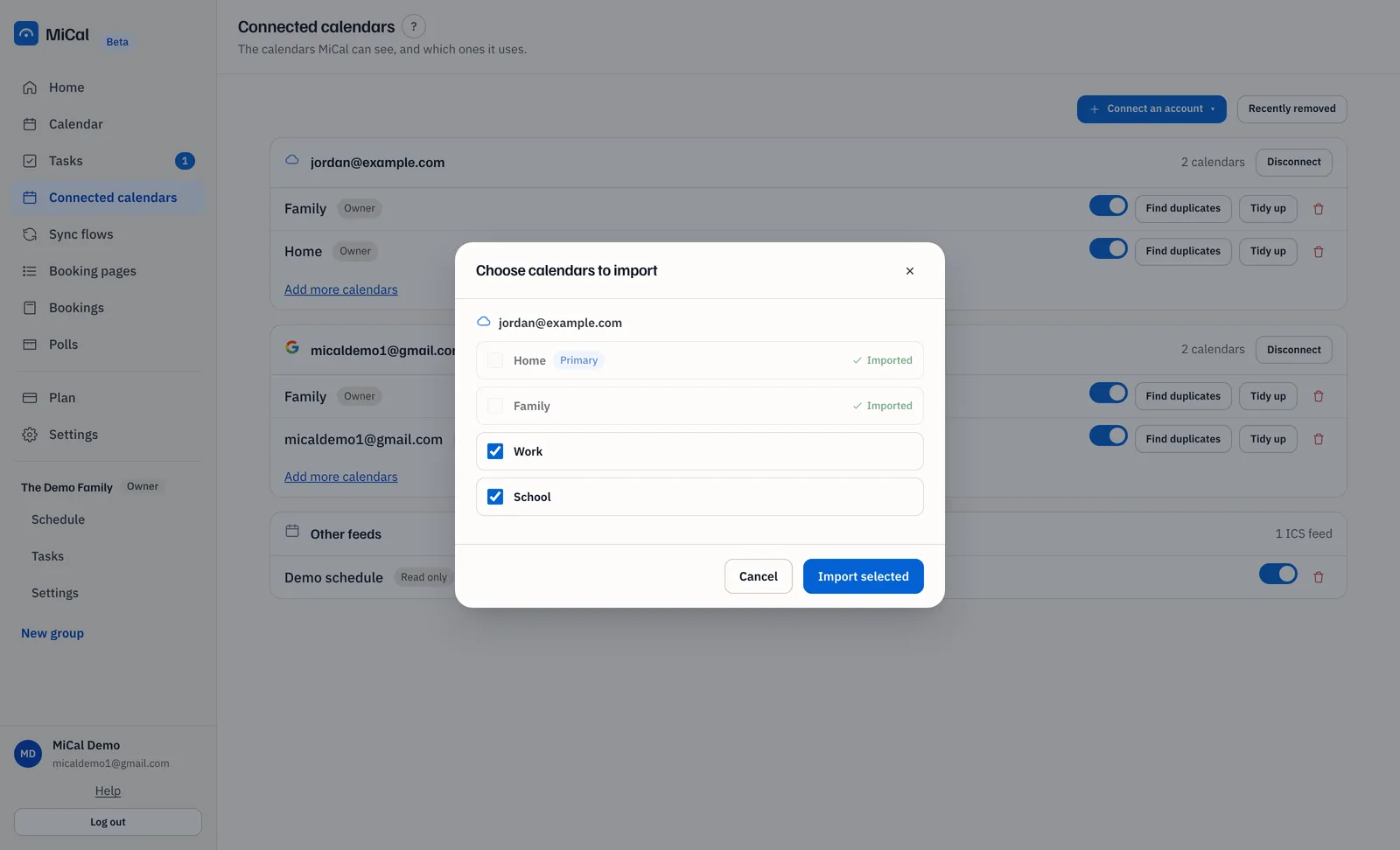
MiCal adds your main iCloud calendar if your plan has room. To add more, select Connect an account, then Choose calendars to import, tick the calendars you want, and select Import selected. Only calendars MiCal can add events to are listed.
Notes
Apple shows the password once. If you lose it, make a new one.
To cut off MiCal's access, turn the app-specific password off at account.apple.com.
If Apple stops accepting the password, the account card shows Reconnect iCloud. Paste a new app-specific password to start syncing again. See Reconnect a calendar account.
Connect attempts are limited to 5 every 15 minutes.
Still stuck? Email support@mical.net.