Connect MiCal to Claude
Connect MiCal to Claude once, then ask about your schedule, free time, tasks and booking links in plain language.
Before you start
A MiCal account with at least one calendar connected.
A Claude account, signed in where you use Claude.
On Claude Team and Enterprise plans, an Owner adds the connector first.
On a phone, add MiCal on claude.ai or in the Claude desktop app first. It then appears in the Claude mobile app.
Steps
In MiCal, select Settings in the sidebar. Under Connected assistants, select Connect your AI assistant.
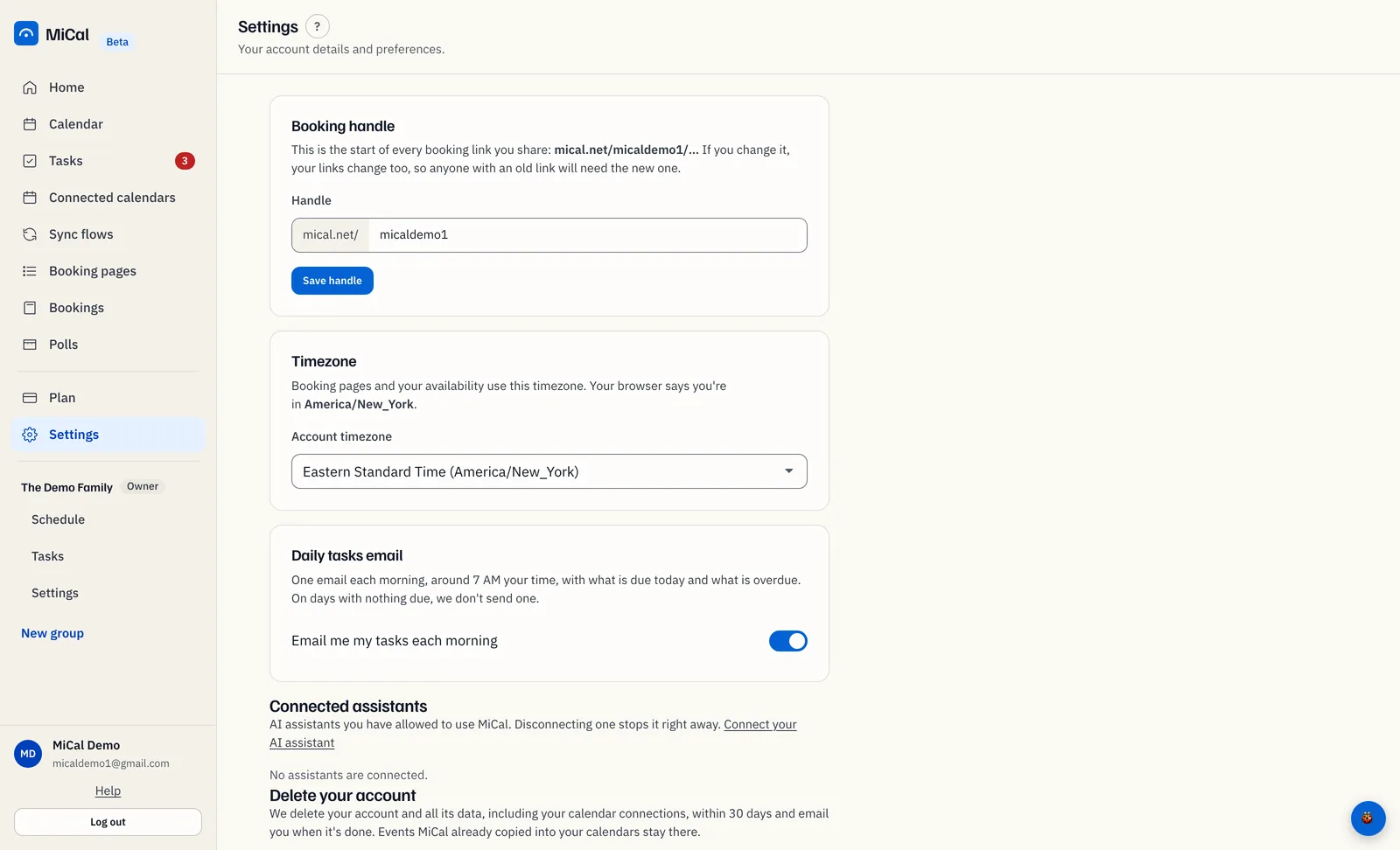
On the Connect your AI assistant page, select Add MiCal to Claude. Claude opens in a new tab.
In Claude, confirm that you want to add MiCal. Claude sends you back to MiCal. Sign in if MiCal asks.
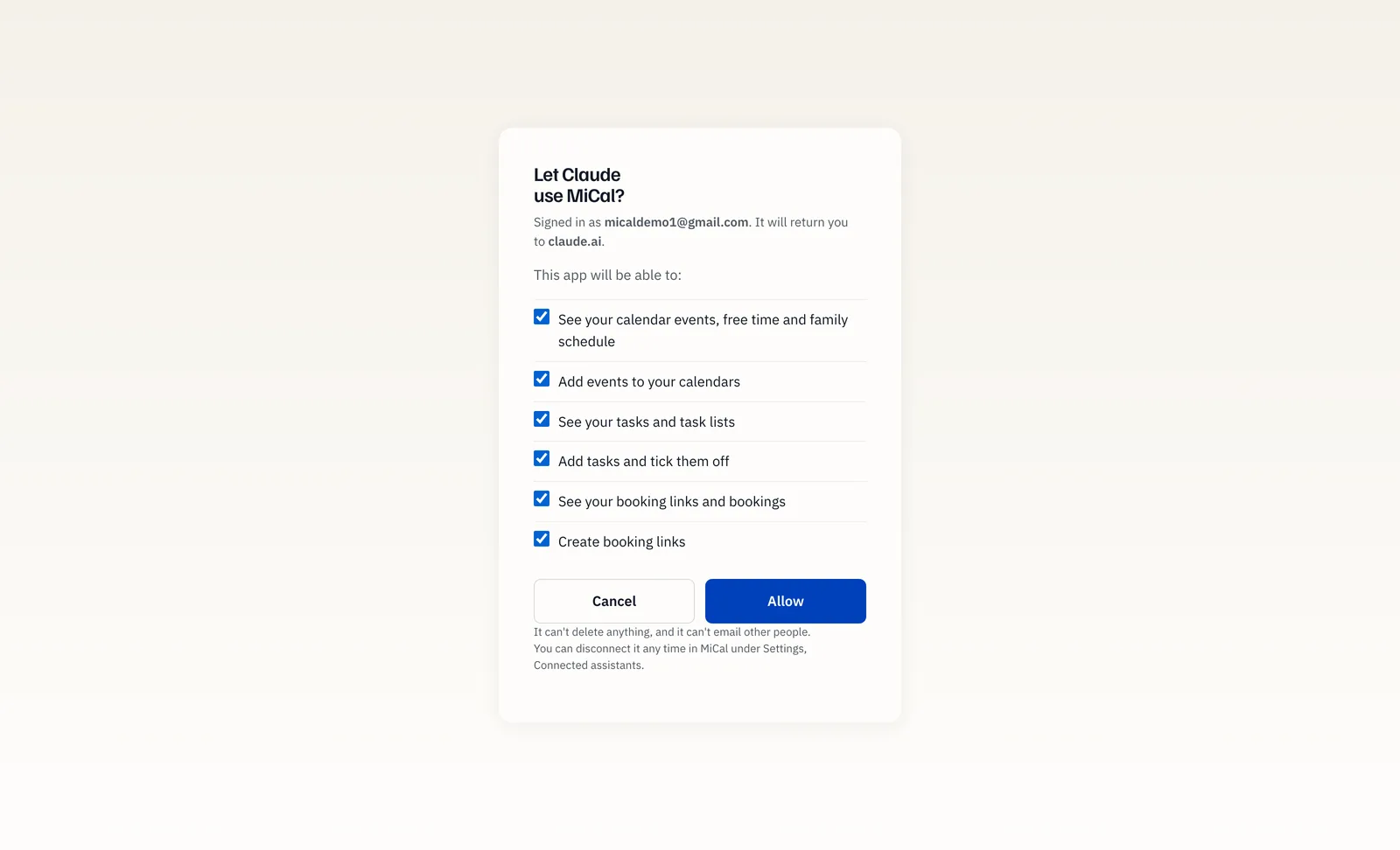
On Let Claude use MiCal?, tick the permissions you want and select Allow. Select Cancel to stop.
Back in Claude, ask a question. Name the time window and, for free time, the length of the slot.
Permissions you can grant
See your calendar events, free time and family schedule
Add events to your calendars
See your tasks and task lists
Add tasks and tick them off
See your booking links and bookings
Create booking links
Every box is ticked at first. Claude can only do what stays ticked.
What to ask
Your schedule: "What does my Thursday look like?" Claude reads your connected calendars, up to 31 days at a time.
Free time: "When am I free for a 30-minute call next week?" Claude searches 9:00 AM to 5:00 PM, Monday to Friday, up to 14 days at a time. Ask for weekends if you want them.
Family: "Is the family free on Saturday morning?" Claude sees what each member chose to share, full details or busy only, up to 7 days at a time. A member who shares no calendar does not block any time, so check with them.
Tasks: "What are my tasks this week?" or "Tick off the grocery run." Claude can also add a task, including a repeating one.
Booking links: "Create a booking link for a 20-minute call." The link uses weekdays, 9:00 AM to 5:00 PM in your time zone. Your plan's limits apply.
What Claude can't do
Delete anything.
Email or invite other people. It adds an event to one of your calendars and invites no one.
Add events to a calendar connected as a read-only feed.
See family events beyond what each member shares.
Notes
Task questions work only where Tasks is turned on for your account.
Claude sees nothing until you select Allow. To remove access later, see Manage or disconnect assistants.
Still stuck? Email support@mical.net.