Add a description and location
Tell people what a meeting is for and where it takes place. Both fields are in the page's edit form.
Steps
Select Booking pages in the sidebar. Under Your booking pages, select the pencil icon (Edit) on the page. The form below becomes Edit booking page.
In Description (optional), write what the meeting is for: what to bring, how it runs, who it suits. A counter shows how much of the 300 characters you have used.
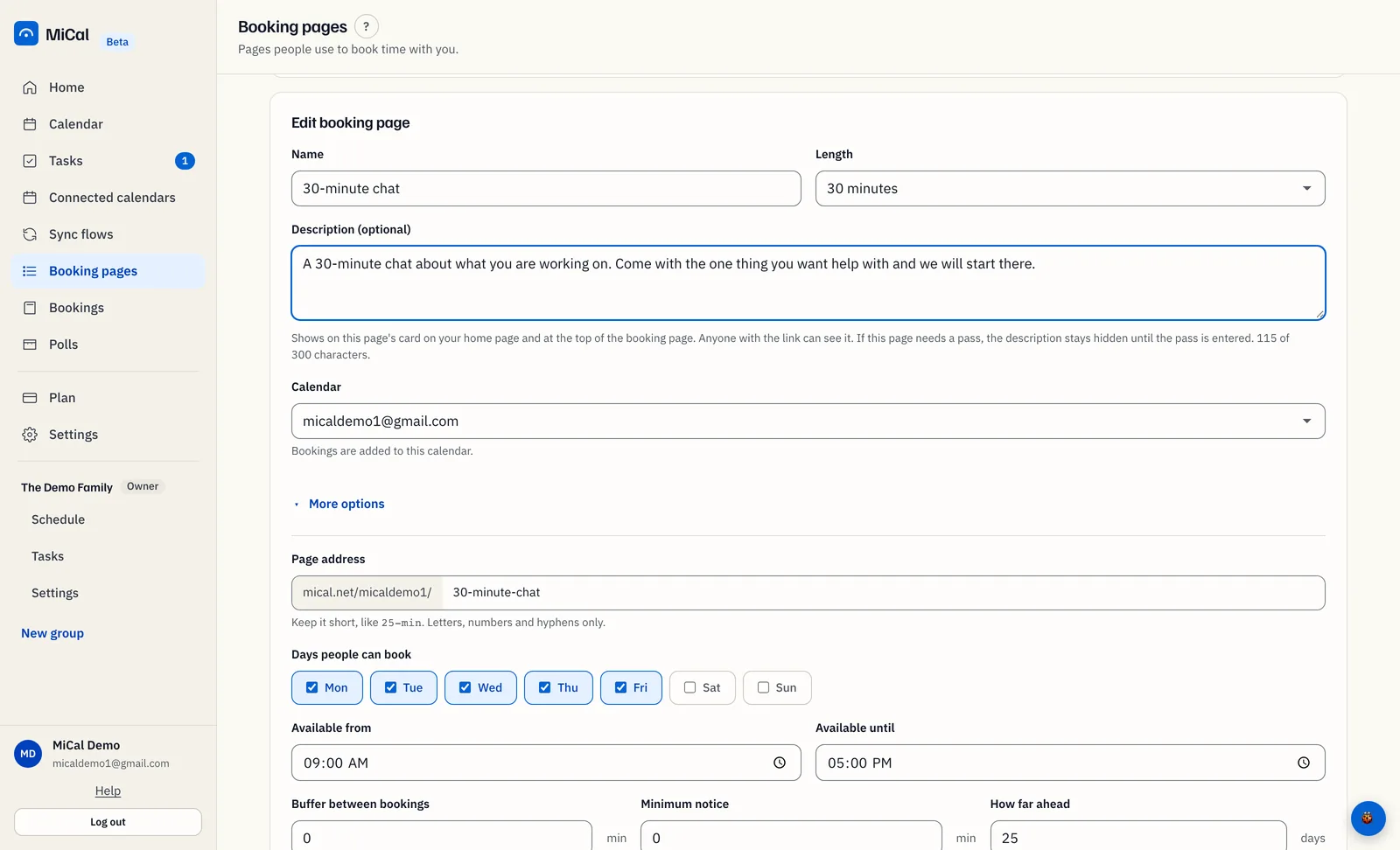
Scroll down to the More options fields, which are already open. Under Where you'll meet, choose Google Meet, Zoom, Phone, In person or Ask the attendee.
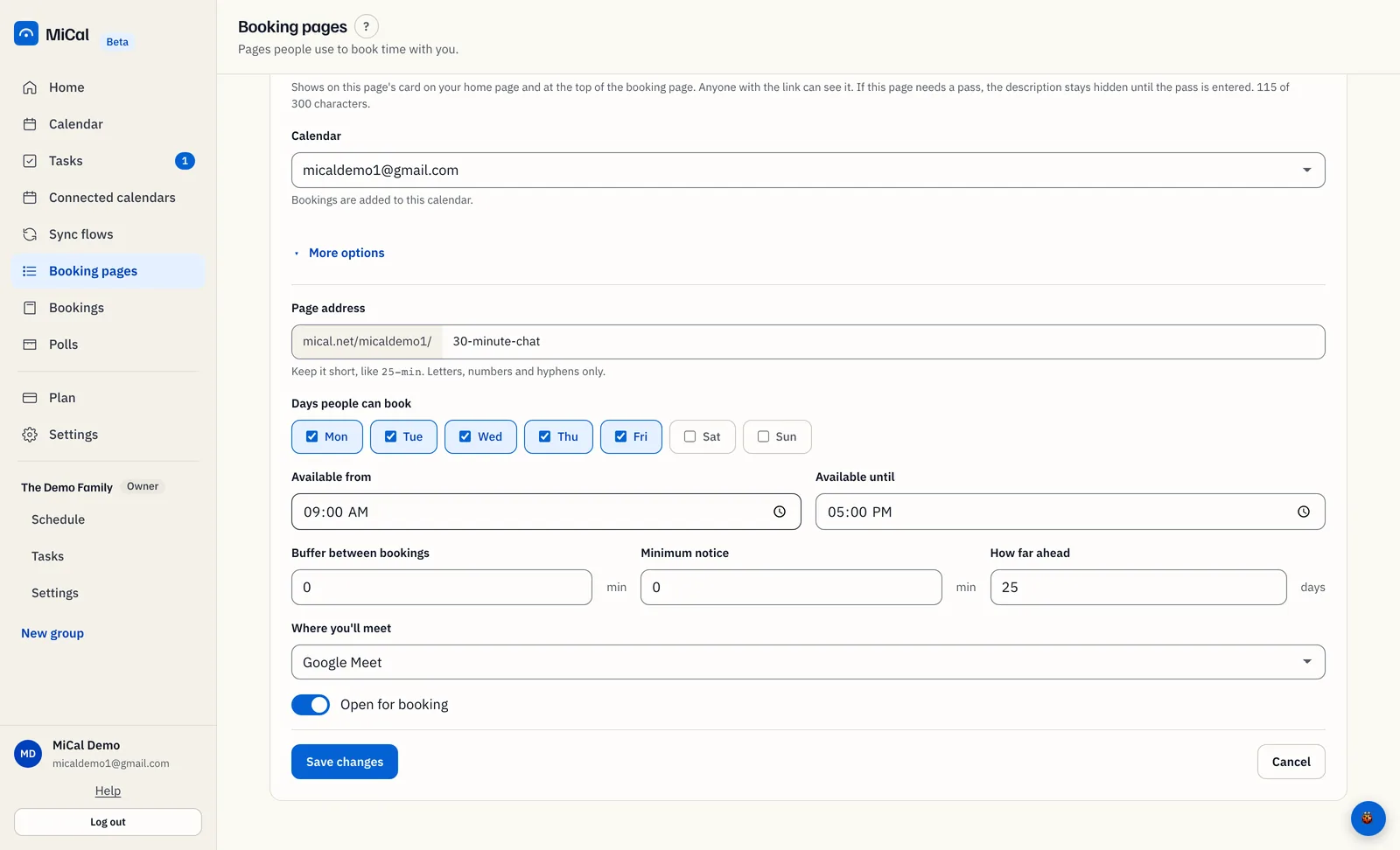
Select Save changes. New bookings from this page use the location right away.
What people see
The description sits at the top of the booking page. It also shows on the page's card on your booking home page.
It is plain text. Links that start with
https://become clickable.If the page needs a pass, the description stays hidden until the visitor enters the pass.
The booking page shows the location: Google Meet, Zoom, Phone, In person, or "Agreed with the host" for Ask the attendee.
The confirmation email carries it too. Ask the attendee reads "To be arranged".
Notes
Google Meet adds a video link to the booking only when bookings go on a Google calendar. On other calendars it is a label.
MiCal does not create Zoom or phone details. Zoom and Phone are labels, so send the details yourself.
You can set the location before you create a page. Select More options in the New booking page form.
Still stuck? Email support@mical.net.