Personalize your booking home page
Your booking home page lists every booking page anyone can book. Add a photo and a short note so people know who they are booking with.
Steps
Select Booking pages in the sidebar. The Your booking home page card is at the top. Its address is the link at the start of the card.
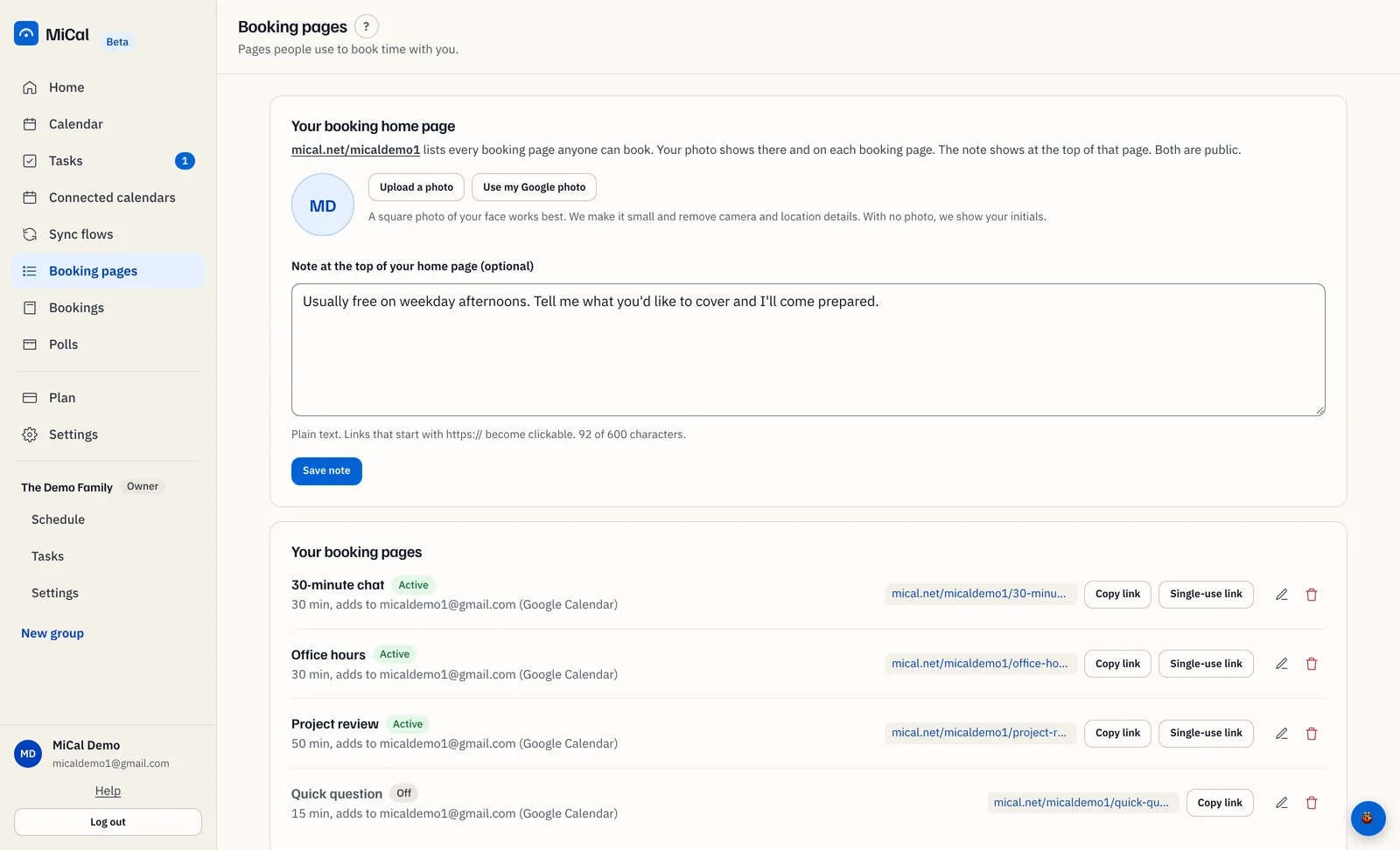
To add a photo, select Upload a photo and choose a JPEG, PNG, WebP or HEIC picture under 25 MB. MiCal crops it to a square, makes it small, and removes camera and location details. Or select Use my Google photo or Use my Microsoft photo. Each connected account adds its own button.
To replace the photo, select Upload a photo again. To go back to your initials, select Remove photo.
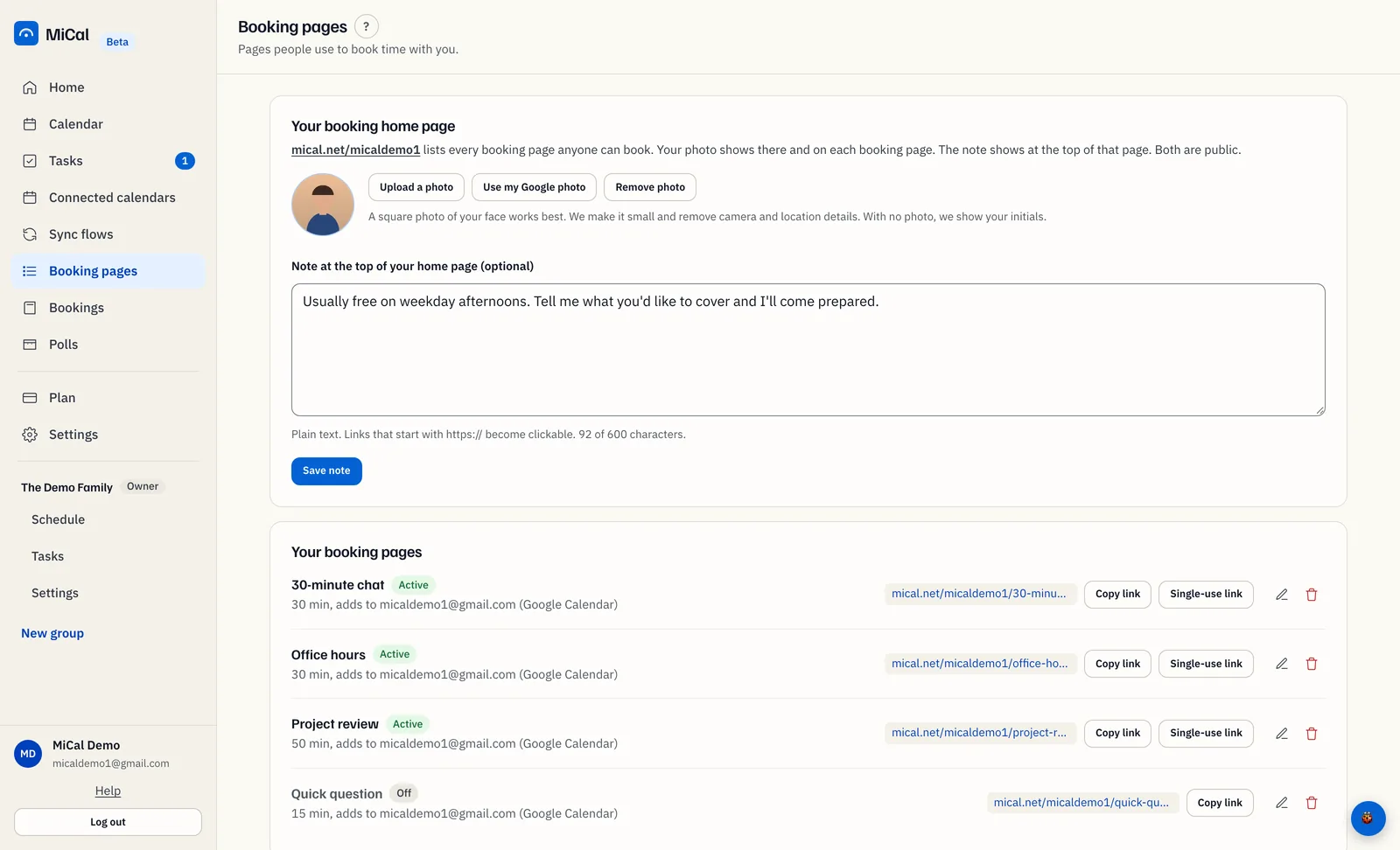
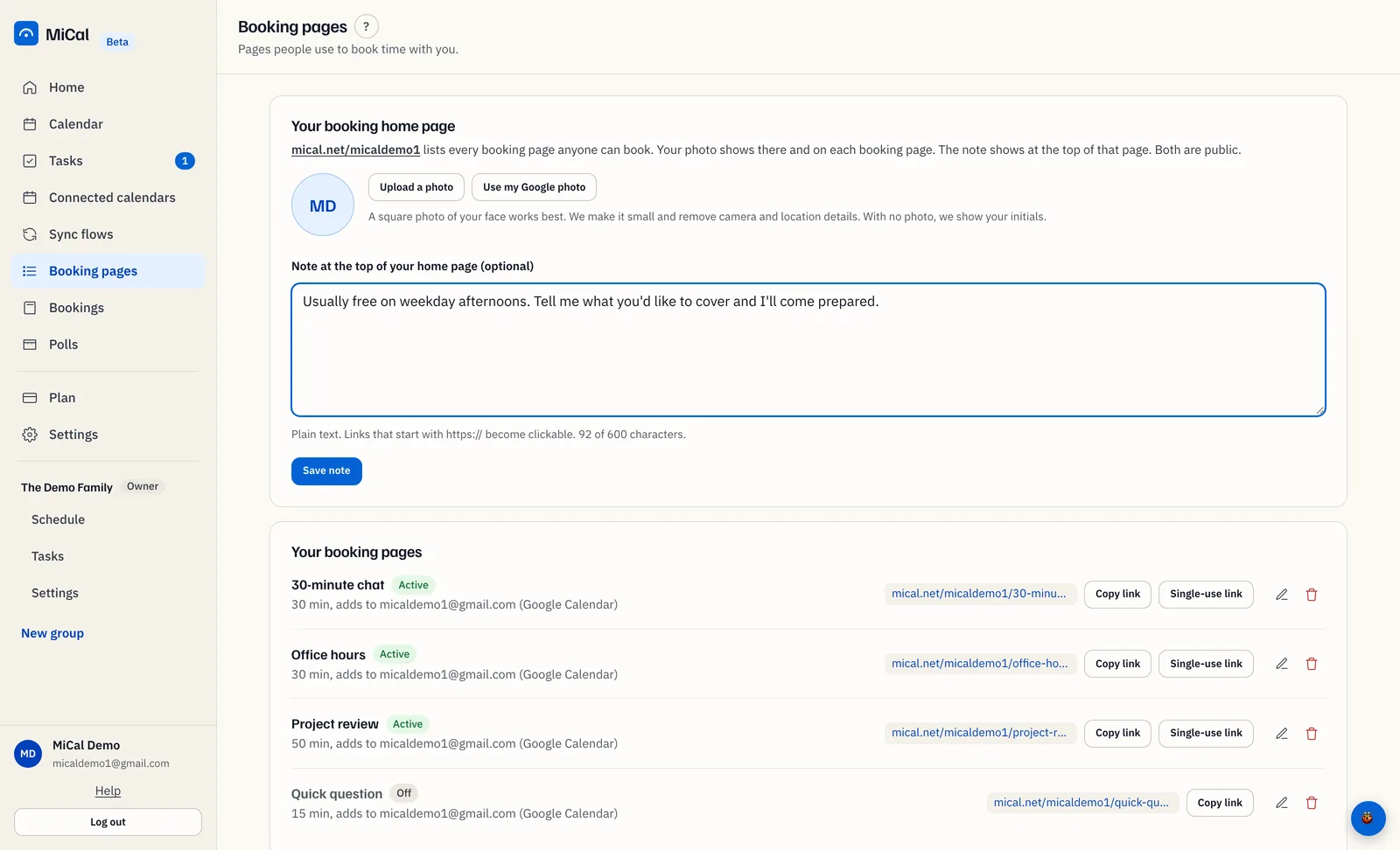
In Note at the top of your home page (optional), write a line or two about you and anything people should know before they book. It can be up to 600 characters. Select Save note.
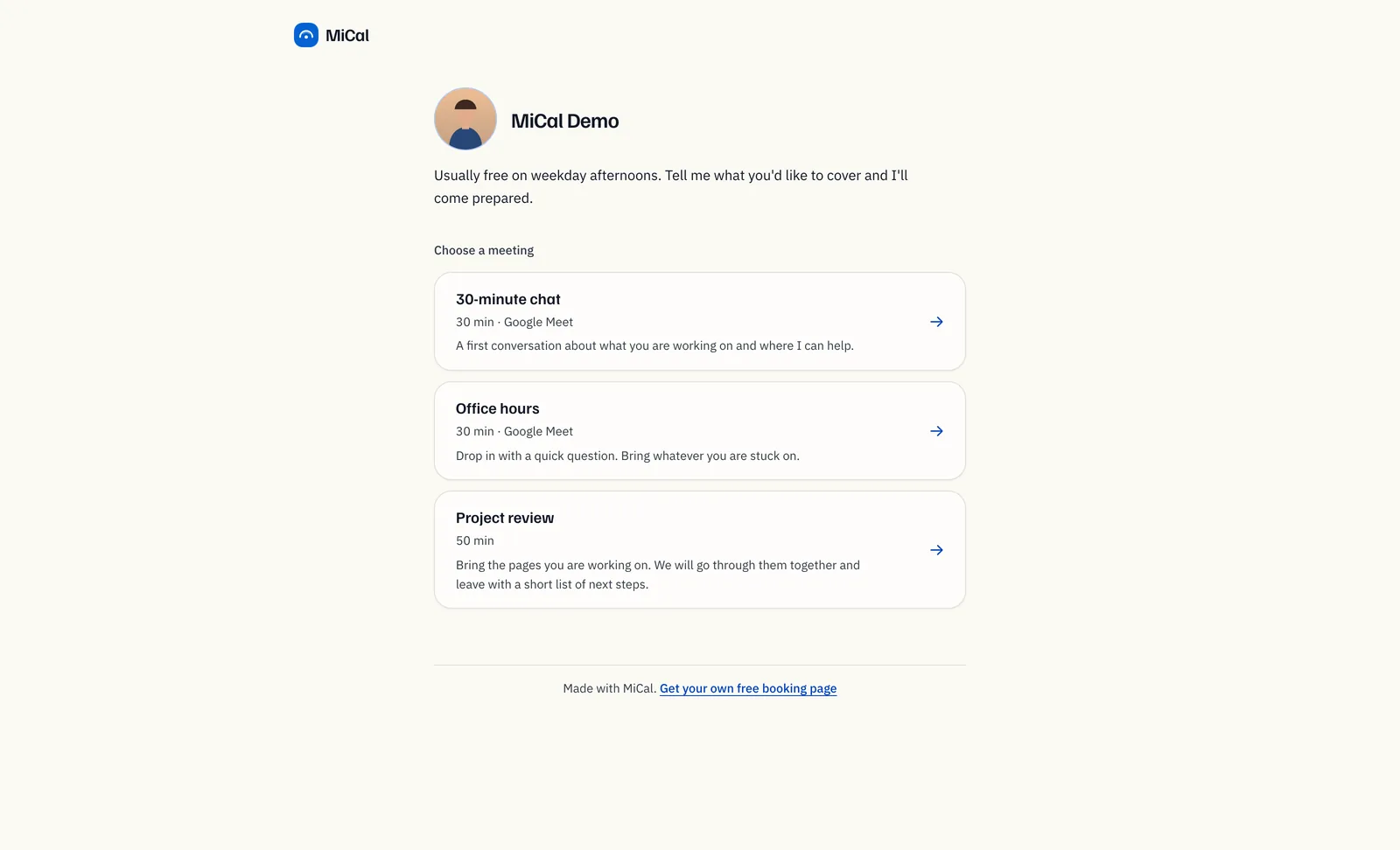
Open the address at the top of the card to check it. Your photo and note appear above Choose a meeting. The photo also shows on each booking page.
Notes
The photo and the note are public. Anyone with your home page address can see them.
The note is plain text. Links that start with
https://become clickable.To remove the note, clear the field and select Save note.
A photo you save shows publicly once you have a booking page turned on.
With no photo, MiCal shows your initials.
Photo, intro and advanced options are on the web. They are not on the phone.
Still stuck? Email support@mical.net.